
Two-Way Google Sheets Integration

What Changed
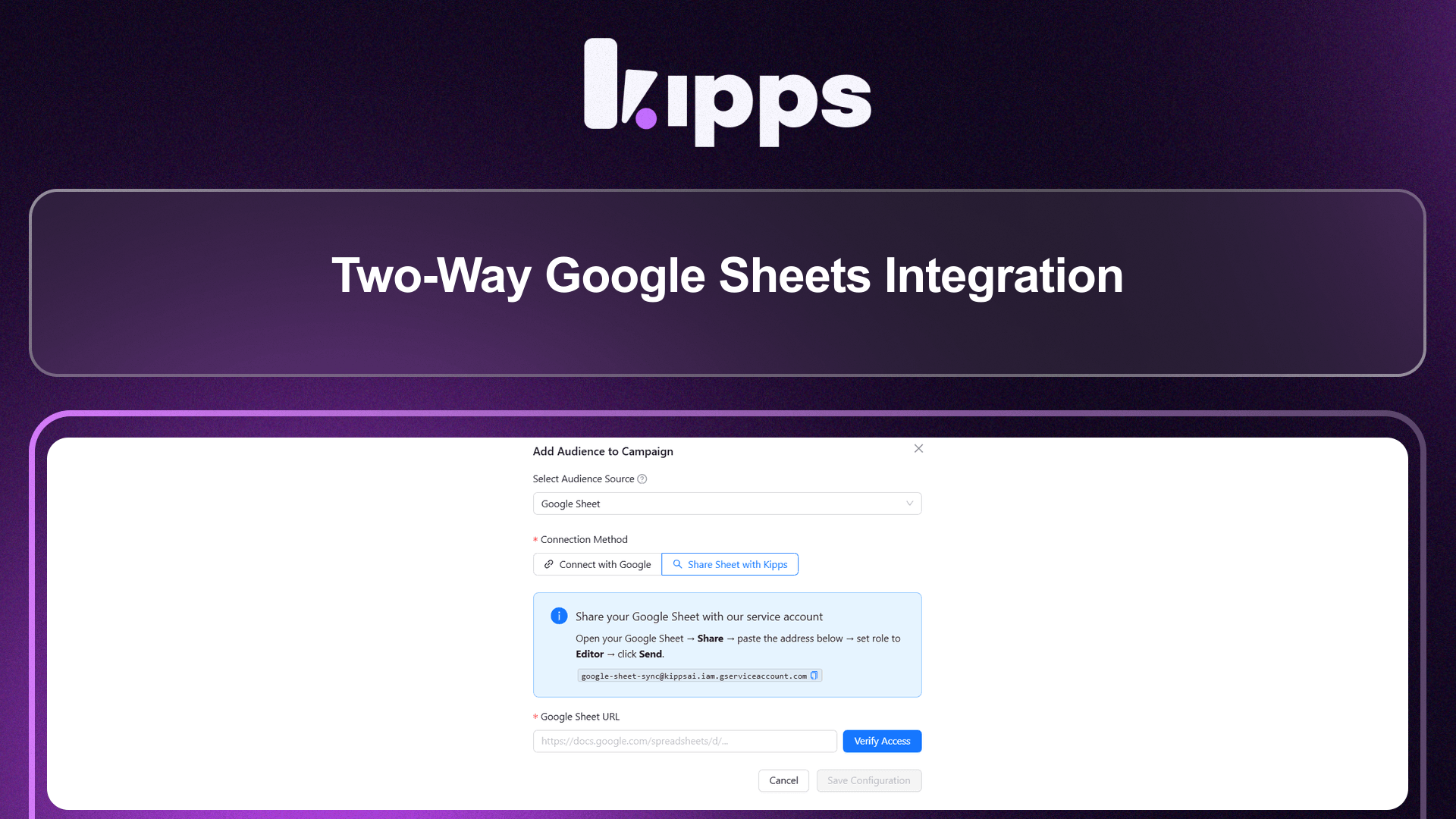
When adding a Google Sheet audience to a campaign, you can now choose between two connection methods:
- Connect with Google — the existing OAuth flow where you sign in with your Google account and browse your Drive to pick a spreadsheet.
- Share Sheet with Kipps (new) — a service account flow where Kipps exposes a fixed email address. You share your sheet with that email once, paste the URL, and the connection is permanent — no login, no token expiry, no re-authentication ever.
Both methods now support two-way sync: once the campaign runs, call outcomes, WhatsApp delivery status, lead qualification results, and AI-collected field values are written back to the corresponding rows in your sheet.
Feature Highlights
-
Two Connection Methods in One Place
Choose OAuth or Service Account right inside the campaign setup modal — no separate settings page required. -
Service Account: Zero Maintenance
The Kipps service account credential never expires. Share the sheet once and it stays connected indefinitely, even after password changes or Google account updates. -
Instant Access Verification
After pasting the sheet URL, click Verify Access. Kipps confirms the sheet is accessible in seconds before you proceed. -
Tab Selection
After verification, all worksheets (tabs) in the spreadsheet are listed. Pick exactly which tab to sync. -
Visual Column Mapping
Kipps reads your header row and shows a mapping interface with a data preview. Map your columns to lead fields — Phone Number is required; Name, Email, and custom fields are optional. -
Configurable Starting Row
Set the row number from which Kipps starts processing (default: 1). Useful if you want to skip header rows or start from a specific point in an existing sheet. -
Real-Time Write-Back
As each lead is processed, the result is written back to the source row:- Call outcome (Completed, Missed, Busy, No Answer)
- WhatsApp delivery status (Sent, Delivered, Read, Replied, Failed)
- Lead qualification status (Hot, Warm, Cold)
- Custom parameter values collected by the AI
How to Set Up (Share Sheet with Kipps)
-
Open Campaign Setup
Go to your campaign → Add Audience → select Google Sheet as the Audience Source. -
Select "Share Sheet with Kipps"
Under Connection Method, click the Share Sheet with Kipps button. -
Copy the Kipps Service Account Email
An info banner appears with the Kipps service account address:
google-sheet-sync@kippsai.iam.gserviceaccount.com
Click the copy icon next to it. -
Share Your Google Sheet
- Open your Google Sheet.
- Click Share (top-right corner).
- Paste the copied email address.
- Set the role to Editor.
- Click Send.
-
Paste Your Sheet URL & Verify
Back in Kipps, paste your Google Sheet URL into the Google Sheet URL field and click Verify Access. Kipps will confirm access instantly. -
Select a Tab
Once verified, all tabs in your spreadsheet appear in a dropdown. Select the tab containing your leads. -
Map Your Columns
The column mapping panel loads your header row with a data preview. At minimum, map the Phone Number column. Optionally map Name, Email, and any custom fields. -
Set Starting Row (optional)
Enter the row number from which processing should begin (default: 1). -
Save Configuration
Click Save Configuration. The campaign is now linked to your sheet and ready to launch.
Ready to try these new features?
Experience the latest improvements and see how they can enhance your workflow. Get started today or learn more about what's coming next.
More Changelog Updates
Related Blog Posts
Kipps.AI integration with Drupal
Kipps AI chatbot and Drupal website integration blog
Read more
Kipps.AI integration with Magento
Kipps AI chatbot and Magento website integration blog
Read more
Kipps.AI integration with Weebly
Learn how to integrate the Kipps.AI chatbot into your Weebly website. Add AI-powered customer support, lead capture, and automation to your Weebly site.
Read more