Kipps.AI integration with Weebly
Learn how to integrate the Kipps.AI chatbot into your Weebly website. Add AI-powered customer support, lead capture, and automation to your Weebly site.

About Weebly
Weebly Website Builder offers a straightforward and robust platform for creating professional websites. Ideal for individuals, entrepreneurs, and small businesses, Weebly features an easy-to-use drag-and-drop interface, making website design accessible to all skill levels. Users can choose from a variety of customizable templates to create responsive sites that work seamlessly on any device. With integrated e-commerce tools, blogging capabilities, and built-in SEO features, Weebly supports comprehensive online presence and growth. Additionally, Weebly provides reliable customer support and various apps to enhance functionality. Whether for a personal blog, business site, or online store, Weebly simplifies the website creation process.
If you run your business on Weebly, adding Kipps.AI gives visitors an instant way to get answers instead of waiting on a contact form to be seen. Because Weebly is built around a simple, section-based editor, adding a custom embed code widget is one of the more approachable integrations to set up — no coding experience required, just a few clicks inside your Weebly console. This guide covers the setup end to end, along with what to check if the widget doesn't behave as expected and how to configure it so it's actually useful to visitors from day one.
Before you start: prerequisites
- A Weebly site that supports custom embed code. Most Weebly plans include the "Embed Code" element, but if you're on a very limited free tier, double-check that this element is available in your editor before starting.
- A Kipps.AI account with a configured agent. Sign up at app.kipps.ai, set up your chatbot or voice agent, and fill in its knowledge base and business hours before you point live traffic at it.
- Your Kipps.AI embed script, copied from the install or integrations section of your Kipps.AI dashboard.
- Editor access to your Weebly site. You'll need permission to edit pages and publish changes, not just view analytics or manage billing.
- A few minutes to preview before you publish. Weebly's preview mode lets you confirm the widget works before it's visible to real visitors.
Step-by-step integration guide
Step 1: Log in to your Weebly account
Log in to your Weebly account and open your site's editing console. This is the same dashboard you use for building pages, managing your store, or checking site stats, so you should already be familiar with getting here.
Step 2: Open the Edit/Design section
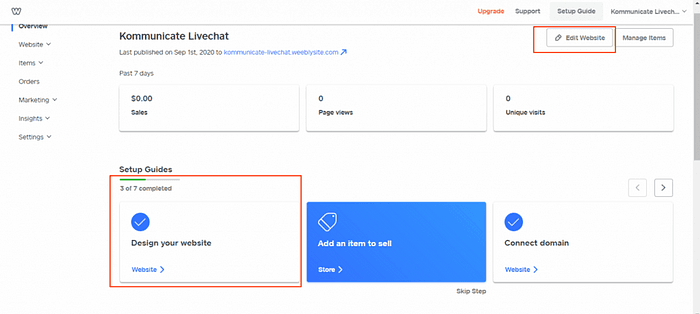
Click on the Edit Website button or the Design your website option; it will show all of your website pages. From here you can navigate between any page you want the widget to appear on, though as you'll see in the next steps, a single embed placed correctly can cover your entire site.
Step 3: Add Section
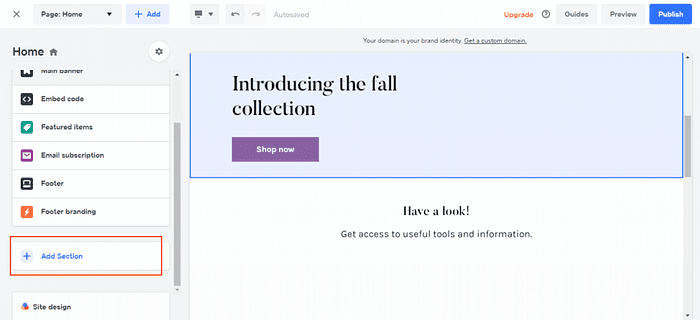
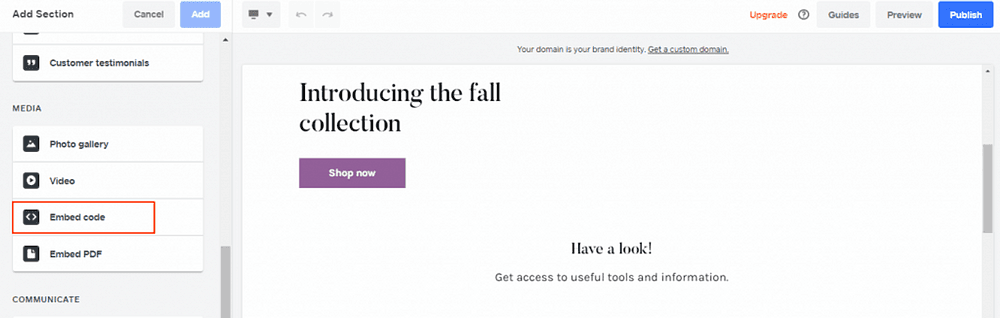
Locate the "Add Section" option and open it. Weebly builds pages out of stacked sections — headers, content blocks, footers, and so on — and one of the section types available is specifically for embedding custom code, which is what you'll use to add the Kipps.AI script.
Step 4: Open the Embed Code Section
Locate the "Embed Code" section in your console and select the "Embed code" page section.
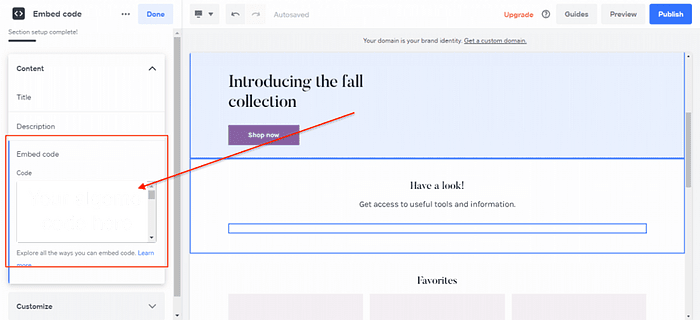
Then paste your Kipps.AI live chat code snippet into the Embed code section, as shown in the image below. Because the chat widget renders itself as a floating element (rather than needing a fixed space in the page layout), it doesn't matter much where on the page you place this section — it will still appear as a chat bubble in the corner of the screen once the site is published.
Step 5: Publish Your Website
Now navigate back to your Weebly console and click on Preview or Publish at the top of the panel. You will be able to see your chat widget there. Use Preview first if you want to check the widget's appearance without making it visible to live visitors yet — once you're satisfied, Publish to push the change live.
Troubleshooting common issues
- The widget doesn't show up after publishing. Confirm the embed code section was actually saved (not just previewed) before you clicked Publish, and hard-refresh your browser or open the site in a private window to rule out a cached version.
- The widget appears on one page but not another. If you added the Embed Code section to only a single page rather than a shared layout element (like a footer that repeats across pages), you'll need to add it to each page individually, or move it into whatever structural element repeats site-wide on your Weebly theme.
- Nothing happens and there's no visible error. Double-check that the entire script was pasted, including opening and closing tags — partial pastes are a common cause of a silently broken widget.
- The widget's position clashes with other floating elements. If your Weebly site already has a floating "Shop" button, social icons, or a promo banner, check your Kipps.AI dashboard's widget position settings to move it to an open corner.
- The widget looks fine on desktop but is missing or broken on mobile. Use Weebly's mobile preview and also check on an actual phone — some themes apply different rules to embedded elements on smaller screens.
- A security setting seems to block the script. This is uncommon on Weebly, but if your browser console shows a blocked-script error, check whether your domain has any additional security service in front of it (such as a third-party CDN) that might need Kipps.AI's script domain allow-listed.
Best practices for a smooth launch
- Always preview before you publish. Weebly's preview mode exists specifically so you can catch layout or placement issues before real visitors see them.
- Set business hours and a clear escalation path in your Kipps.AI dashboard, so visitors understand when they're chatting with the AI versus waiting for a human reply.
- Place the embed code section somewhere that persists across pages if you want site-wide coverage, such as a footer element that Weebly repeats automatically, rather than a one-off section on a single page.
- Fill out your agent's knowledge base with real, current information — pricing, hours, policies — before directing traffic to your site, so the chatbot's answers are actually accurate.
- Check the widget on both desktop and mobile before calling the rollout complete, since a meaningful share of Weebly site traffic is typically mobile.
- Revisit the integration after major site redesigns. If you significantly restructure your Weebly site or switch themes, confirm the embed code section is still in place afterward.
Frequently Asked Questions
No. Weebly's Embed Code section is designed for pasting ready-made scripts without writing or editing any code yourself.
It depends where you place the Embed Code section. If you add it to a page element that repeats across your site (like a shared footer), it will appear everywhere. If you add it to a single page only, it will only appear there.
Yes. Use Weebly's Preview option after adding the embed code to check its appearance and behavior before clicking Publish.
Check whether the Embed Code section is still present on the page — some structural changes to your Weebly layout can accidentally remove or reposition sections. Re-add it if needed and republish.
Yes. The same embed code approach works whether your Weebly site is a blog, portfolio, or e-commerce store — the widget renders as a floating chat bubble regardless of the underlying page type.
Give your Weebly visitors an always-on way to get answers. Sign up for Kipps.AI and have your widget live in minutes, or talk to our team if you'd like help planning your rollout. Explore more about the platform at kipps.ai.