
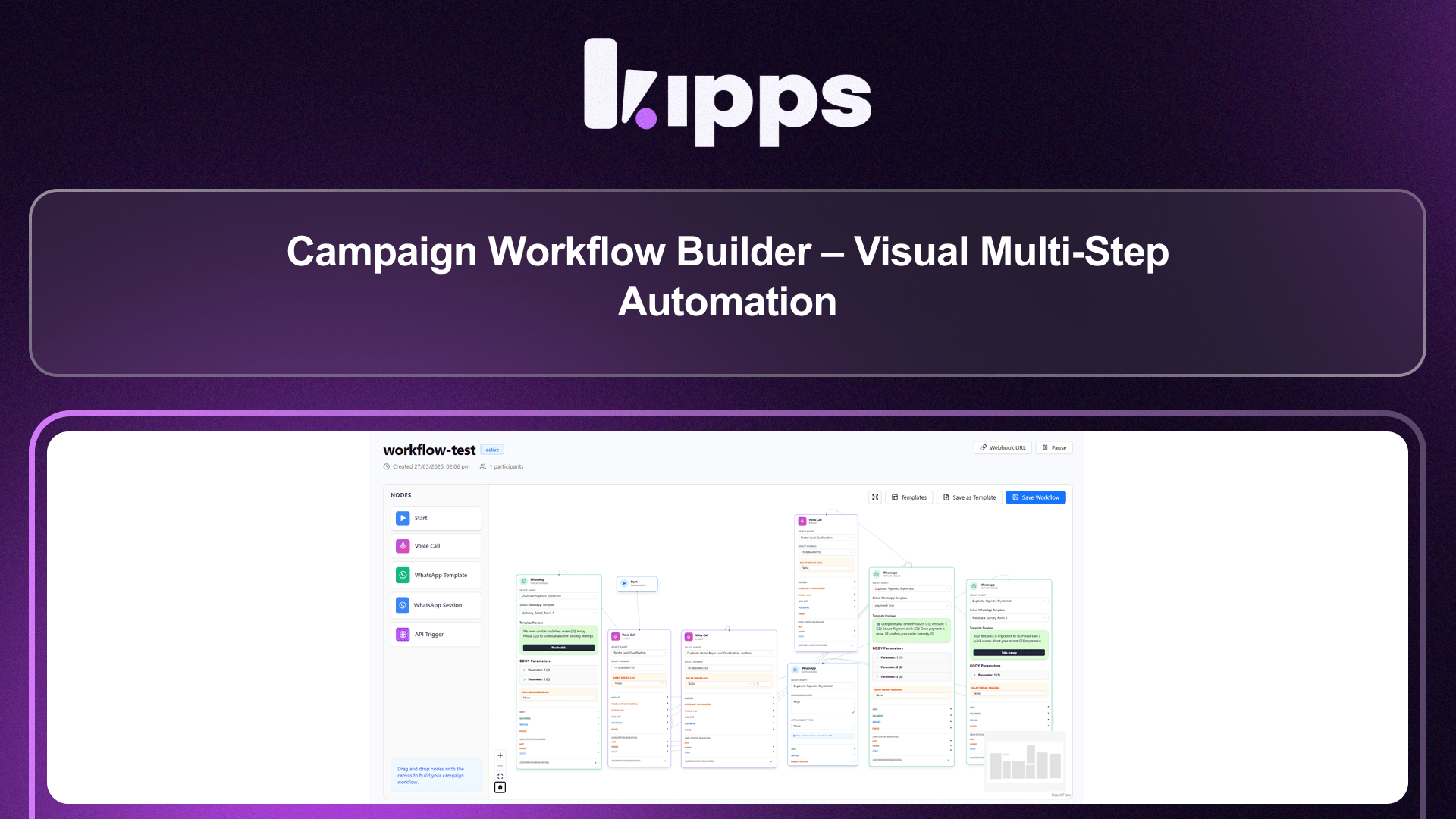
Campaign Workflow Builder – Visual Multi-Step Automation

Feature Highlights
-
Visual Drag-and-Drop Canvas
Build your entire flow on an interactive canvas. Add, connect, and rearrange nodes without writing a single line of code. -
Multi-Channel Node Types
Combine four powerful node types in any order:- Voice Call Node — select a Phone Number (DID) and AI Voice Agent.
- WhatsApp Template Node — send a pre-approved template with static or dynamic delay.
- WhatsApp Session Node — send rich text + media when a contact has messaged within the last 24 hours.
- Webhook / API Node — push data to any external system mid-flow.
-
Smart Edge Conditions
Every connector between nodes carries a condition. Voice call edges can branch on call outcome (Completed, Missed, Busy, Cut), lead status (Hot / Warm / Cold), or custom lead parameters. WhatsApp edges branch on delivery status (Sent, Delivered, Read, Replied, Failed). Webhook edges branch on HTTP success or failure. -
Static & Dynamic Delays
Delay any node by a fixed time (e.g. 30 minutes after the previous step) or by a dynamic offset calculated from a lead field (e.g.appointment_time − 1 hour). -
Single Lead Identity
One contact always maps to exactly one Lead record across the entire workflow run—no duplicate records, no split history. -
Save as Template
Save any workflow as a reusable template and load it into future campaigns in one click. -
Pause / Resume / Stop
Control live workflow runs in real time. Pausing a campaign signals every in-flight Temporal workflow to hold; resuming picks up exactly where it left off.
How to Use
-
Open the Workflow Builder
Navigate to Dashboard → Campaigns → select a campaign → Workflow tab. -
Drag Nodes onto the Canvas
From the left sidebar, drag any of the four node types — Voice Call, WhatsApp Template, WhatsApp Session, or Webhook — onto the canvas. -
Configure Each Node
Click a node to open its configuration panel:- Voice Call: choose the outbound phone number (DID) and the AI Voice Agent.
- WhatsApp Template: pick the WhatsApp integration, the pre-approved template, and set a delay (static minutes or a dynamic field + offset).
- WhatsApp Session: compose a text message and optionally attach an image, document, or video. Only fires if the contact replied within the last 24 hours.
- Webhook: enter the URL, headers, and payload (supports
{{lead_field}}variable injection).
-
Connect Nodes
Drag from an output handle on one node to the input of the next. Each node exposes labelled handles per outcome (e.g. Completed, Missed, No Answer on a Voice Call node). -
Set Edge Conditions
Click any connector arrow to open the condition editor. Select the condition that must be true for the flow to follow that path (call status, delivery status, lead status, or a custom parameter value). -
Add Delays
Inside any node config, toggle Delay on and choose:- Static — enter a fixed number of minutes.
- Dynamic — pick a lead/contact field name and an offset in minutes (positive = after, negative = before the event time).
-
Save the Workflow
Click Save Workflow in the top-right toolbar. The canvas state is persisted to the campaign immediately. -
Save as Template (optional)
Click Save as Template, give it a name and description, then click OK. Load any saved template via the Templates button on the same toolbar. -
Launch the Campaign
Go back to the campaign overview and click Start. The system creates one Temporal workflow run per lead and executes the node sequence automatically. -
Monitor & Control
Use the Pause and Resume buttons on the campaign page to halt or continue all in-flight workflow runs at any time.
Ready to try these new features?
Experience the latest improvements and see how they can enhance your workflow. Get started today or learn more about what's coming next.
More Changelog Updates
Related Blog Posts
AI Calling Explained: How Autonomous Phone Agents Handle Calls at Scale
Explore how AI calling automates customer acquisition, boosts conversions, and scales operations.
Read more
Chat Bot vs AI Agent: What Modern Businesses Actually Need in 2026
Explore how Chat bot automates customer acquisition, boosts conversions, and scales operations.
Read more
What Is an AI Voice Agent? How It Works, Real Costs & 2026 Playbook
Explore how Voice Agent automates customer acquisition, boosts conversions, and scales operations.
Read more