Personalize Customer Journeys with WhatsApp Template Button Triggers
Trigger custom AI workflows directly from WhatsApp template buttons to guide customers through interactive conversational flows.

Share This Article
Table of Contents
Overview
For years, WhatsApp has been a powerful channel for direct customer engagement. But for automation specialists, it has also come with a significant limitation: a lack of precision at the most critical moment of interaction. When a user replied to a message template, their specific choice was often lost, funneling everyone down the same generic conversational path. The result? Clunky, impersonal experiences that failed to meet modern customer expectations.
Today, that changes. We’re excited to introduce WhatsApp Template Button Triggers, a powerful new capability in our Flow Builder. This feature allows you to create unique, dynamic, and personalized conversational journeys that begin the instant a user taps a Quick Reply button. It’s time to move beyond one-size-fits-all automation and start delivering the hyper-relevant experiences your customers deserve.
Why This Feature Matters
In today's competitive landscape, personalization isn't a luxury; it's the standard. Customers expect businesses to understand their intent and provide immediate value. When a user taps a button labeled "Track My Order," they don't want to be met with a generic "How can I help you?" menu. They expect to see their order status.
This new feature directly addresses this expectation. By enabling precise WhatsApp conversation branching from the very first interaction, you can:
- Increase Engagement: Immediately guide users down a relevant path, reducing friction and increasing the likelihood they will complete their desired action.
- Improve Lead Qualification: Segment new leads instantly. A user clicking "Get Pricing" can be routed to a sales qualification flow, while someone tapping "Learn More" can receive product information, all within the same campaign.
- Boost Customer Satisfaction: Solve problems faster by routing support requests directly to the right automated flow or human agent, demonstrating that you value your customer's time and intent.
Ultimately, WhatsApp template button triggers transform your WhatsApp channel from a simple messaging tool into an intelligent, responsive platform for building meaningful customer relationships.
The Problem Before This Feature: The One-Size-Fits-All Welcome Flow
To fully appreciate the impact of this update, let’s look at the challenges businesses faced previously. Imagine you sent a WhatsApp template message to re-engage users, offering them buttons for "New Arrivals," "Special Offers," and "Customer Support."
Before today, a tap on any of those buttons would trigger the exact same, generic welcome flow. The platform could only detect that a user had replied, not what they had replied with. This created several significant pain points:
- Forced Repetition: The user taps "Customer Support," only to be met with an automated message asking, "Thanks for your message! Please type 'Support' if you need help." This redundant step created a frustrating and inefficient user experience.
- Complex, Brittle Workarounds: To solve this, developers had to build complex routing logic. This often involved parsing the text content of the button reply and using conditional steps to direct the user. These workarounds were difficult to maintain and could easily break if the button text was ever changed.
- Lost User Intent: If a user was already in the middle of a different conversation (e.g., an abandoned cart flow) and tapped a button on a new marketing template, their new intent could be missed or misrouted, leading to a confusing conversational dead end.
- Inconsistent Experiences: The logic for handling these replies could differ depending on whether the template was sent from a campaign, the inbox, or via an API, making it nearly impossible to deliver a consistent journey.
These limitations forced businesses to choose between a poor customer experience or a heavy investment in fragile, custom-coded solutions.
Overview of the Feature: Introducing Granular Conversation Branching
WhatsApp Template Button Triggers are a new function within our WhatsApp flow builder that gives you granular control over your conversational automation.
At its core, the feature allows you to map each individual Quick Reply button on an approved WhatsApp message template to a specific starting point within an automation flow. When a user taps a button, our platform instantly recognizes their choice and routes them to the exact conversational branch you designed for that specific intent.
This enables true user intent routing from the very first touchpoint. Instead of a single entry point, your flow’s "Conversation Start" node can now have multiple, trigger-based starting paths. This simple yet powerful mechanism is the key to unlocking highly effective and personalized WhatsApp marketing and support automation.
Key Capabilities
We designed this feature to be both powerful and intuitive, addressing the core challenges of WhatsApp automation with four key capabilities.
Precise Flow Branching
The primary function of this feature is the ability to map specific Quick Reply buttons to distinct automation paths. In the Flow Builder, each button on your selected template appears as a unique exit point on the "Conversation Start" node. You simply draw a connection from the "Get Support" button to your support automation branch and another from the "Explore Products" button to your product discovery branch. This visual, no-code approach makes creating sophisticated conversational journeys incredibly straightforward.
Universal Consistency
A common headache for automation managers is inconsistent behavior across different sending channels. We’ve eliminated that problem. These triggers work identically whether the template message is sent from an automated campaign, manually from the agent inbox, as a follow-up to a voice call, or programmatically via our API. The routing logic is tied to the template and the button itself, not the method of delivery, ensuring a reliable and predictable user experience every time.
Priority Intent Routing
What happens when a user is already in a flow and taps a button on a new template they just received? Our new trigger-based automation handles this gracefully with Priority Intent Routing. A tap on a configured template button will always take precedence over the user's current conversational state. This ensures that the user's most recent, explicit intent is captured and acted upon immediately, preventing missed opportunities and routing conflicts.
Seamless, Opt-In Integration
We know how critical it is to maintain your existing operations without disruption. That's why this feature is entirely opt-in. Your current flows will continue to function exactly as they do now. The new triggering logic only activates when you explicitly configure a template trigger on the "Conversation Start" node. This allows you to adopt this powerful new capability at your own pace without needing to rebuild or modify any of your existing automations.
Step-by-Step Usage: How to Create Different Flows for WhatsApp Quick Reply Buttons
Ready to automate WhatsApp conversations with more precision? Setting up your first trigger is a simple, four-step process within the Flow Builder.
Step 1: Navigate to the Conversation Start Node
Begin by opening the flow you wish to enhance. Every flow starts with a "Conversation Start" node—this is where your entire user journey originates. Click on this node to open its configuration panel.
Step 2: Add and Select a Template Trigger
Inside the configuration panel, you'll see a new option: "Add a template trigger." Clicking this will open a searchable list of your approved WhatsApp message templates. The list is automatically filtered to show only templates that contain Quick Reply buttons, as these are the buttons that can be used for routing. Select the template you want to use as the entry point for this flow.
Step 3: Map Each Button to a Flow Branch
Once you select a template, the "Conversation Start" node will update visually. You will now see a separate row and connection handle for each Quick Reply button from that template. To create a unique journey, simply click and drag a wire from each button’s handle to the specific node or step where you want that user’s conversation to begin. For example, drag the wire from the "Book a Demo" button to your lead qualification sequence.
Step 4: Configure the Fallback Path
A "Normal message" row is always present on the node. This is your fallback path. It catches any user reply that isn't a tap on one of the configured Quick Reply buttons—such as a user typing a free-form message. Connect this handle to your existing default welcome flow or a general-purpose AI agent to ensure that no message is ever ignored. This preserves your old logic while you add new, more specific paths.
Real-World Example: A Multi-Path Customer Welcome Journey
Let's see how this works in a practical scenario. Imagine a fintech company, "SecurePay," welcomes new users who have just signed up via WhatsApp. They send a template message that reads:
"Welcome to SecurePay! We're excited to have you. What would you like to do first?"
With three Quick Reply buttons:
- Explore Features
- Get Support
- Chat with an Expert
Using WhatsApp template button triggers, SecurePay designs a unique journey for each choice:
- User Taps "Explore Features": They are immediately sent into a flow that showcases SecurePay's key offerings. The first message might be, "Great! Let's take a look at what you can do. Our most popular features are 'Instant Transfers' and 'Budgeting Tools.' Which would you like to learn about?" This path is designed to educate and drive product adoption.
- User Taps "Get Support": They are routed to an automated support flow. The first message says, "We're here to help. To get you the fastest answer, please choose from our FAQ categories: 'Account Setup,' 'Transaction Issues,' or 'Security.'" This provides instant self-service support and escalates to a human agent only when necessary.
- User Taps "Chat with an Expert": This click signals high intent. The user is instantly routed to a flow that qualifies them ("Are you an individual or a business user?") and then connects them directly to the appropriate live agent for a personalized consultation.
In this single campaign, SecurePay has created three distinct, valuable, and hyper-relevant conversational journeys, all automated through one simple, elegant flow.
Benefits
Adopting this feature provides tangible benefits for your business, your developers, and most importantly, your customers.
Deliver Hyper-Personalized Experiences
Greet users with a message and a flow that directly acknowledges their stated interest. This immediate relevance fosters a sense of being understood, which is the foundation of a great customer experience and a cornerstone of effective customer experience automation.
Increase Automation Efficiency
Eliminate the need for brittle, custom-coded workarounds and extra conversational steps. By capturing user intent at the source, your automations become cleaner, more reliable, and much easier to build and maintain with our no-code chatbot builder.
Boost Engagement and Conversions
By removing friction and guiding users down the most direct path to their goal, you dramatically increase the chances of conversion. Whether that goal is making a purchase, booking a demo, or resolving an issue, clear and direct paths lead to better outcomes.
Ensure Reliable, Consistent Routing
Build with confidence, knowing that your routing logic will work flawlessly across all your channels. This consistency creates a trustworthy and predictable experience for your users, reinforcing their confidence in your brand.
Best Practices
To get the most out of WhatsApp quick reply automation, follow these expert recommendations:
- Design with Clear Intent: The text on your Quick Reply buttons is now more important than ever. Ensure it is clear, concise, and accurately represents the conversational path it triggers. Ambiguous labels like "Continue" or "OK" are less effective than action-oriented text like "Track Order" or "View Plans."
- Plan Your Fallback Route: Always configure the "Normal message" path. Some users will inevitably type a custom response instead of tapping a button. Your fallback ensures these users aren't left at a dead end and can be routed to a general menu or an AI that can parse their intent.
- Test Interruptions: One of the most powerful aspects of this feature is Priority Intent Routing. Test it. Put a user in the middle of one flow, then send them a template and have them tap a button. Verify that the new flow triggers correctly, interrupting the old one. This will give you confidence in your most complex user journeys.
- Maintain Template Hygiene: If you edit the text or add/remove buttons on an approved template in WhatsApp Manager, remember to update the corresponding triggers in the Flow Builder. Re-select the template in the "Conversation Start" node to pull in the latest changes and ensure your mappings remain accurate.
Conclusion
The era of generic, one-size-fits-all WhatsApp automation is over. With WhatsApp Template Button Triggers, you now have the power to create deeply personalized, efficient, and intelligent conversations at scale. By understanding user intent from the very first tap, you can design conversational journeys that not only meet but exceed customer expectations. This is more than just a new feature; it's a fundamental shift in how you can build relationships and drive results on the world's most popular messaging app.
Ready to build smarter, more personalized WhatsApp conversations? If you're an existing customer, log in to the Flow Builder to configure your first template trigger today. New to our platform? Schedule a personalized demo to see how you can revolutionize your customer experience on WhatsApp.
Frequently Asked Questions
If you change the buttons on a template in your WhatsApp Business Manager, you will need to update the configuration in the Flow Builder. Open the "Conversation Start" node, remove the existing template trigger, and then add it again. This will refresh the node with the new button configuration, allowing you to map the updated buttons correctly.
This feature is designed specifically for Quick Reply buttons. CTA buttons, which either open a website URL or initiate a phone call, do not send a message reply back to your WhatsApp channel and therefore cannot be used to trigger a conversational flow in this manner.
No, absolutely not. The feature is 100% opt-in. Your existing flows will continue to function exactly as they do today. The new trigger logic only applies to flows where you have explicitly added and configured a template trigger on the "Conversation Start" node.
No, a single template can only be configured as a trigger for one flow. However, within that one flow, you can use the template's buttons to branch the user into infinitely complex and distinct conversational paths, effectively achieving the same outcome of creating unique journeys.
Frequently Asked Questions
What are WhatsApp Template Button Triggers?
WhatsApp Template Button Triggers are a feature that lets you start a specific automated conversation path when a user taps a Quick Reply button on a WhatsApp template. This enables you to create highly personalized and relevant customer journeys based on the user's explicit choice, routing them to the correct flow from their very first interaction.
How does this feature improve customer experience on WhatsApp?
By routing users to a specific conversational flow based on their button tap, you eliminate generic, repetitive interactions. For example, a user tapping 'Track My Order' can be taken directly to an order status flow instead of a general menu, providing immediate value and a more satisfying, frictionless experience.
What happens if a user is in an existing flow and taps a new template button?
The new template button tap takes priority. Our Priority Intent Routing ensures that the user's most recent and specific choice is acted upon, interrupting the current flow and starting the new, relevant conversational path. This prevents missed user intent and routing conflicts.
Do I need to change my existing WhatsApp flows to use this?
No, this feature is entirely opt-in and will not break any of your existing automations. Your current flows will continue to work as they always have. The new triggering logic only activates when you explicitly add and configure a template trigger in a flow's 'Conversation Start' node.
Does this work with both Quick Reply and Call-to-Action (CTA) buttons?
This feature is designed exclusively for Quick Reply buttons, as they send a message back to your system that can trigger a flow. Call-to-Action (CTA) buttons, which open a website or start a phone call, do not send a reply and therefore cannot be used to trigger conversational automation in this way.
Related Case Studies
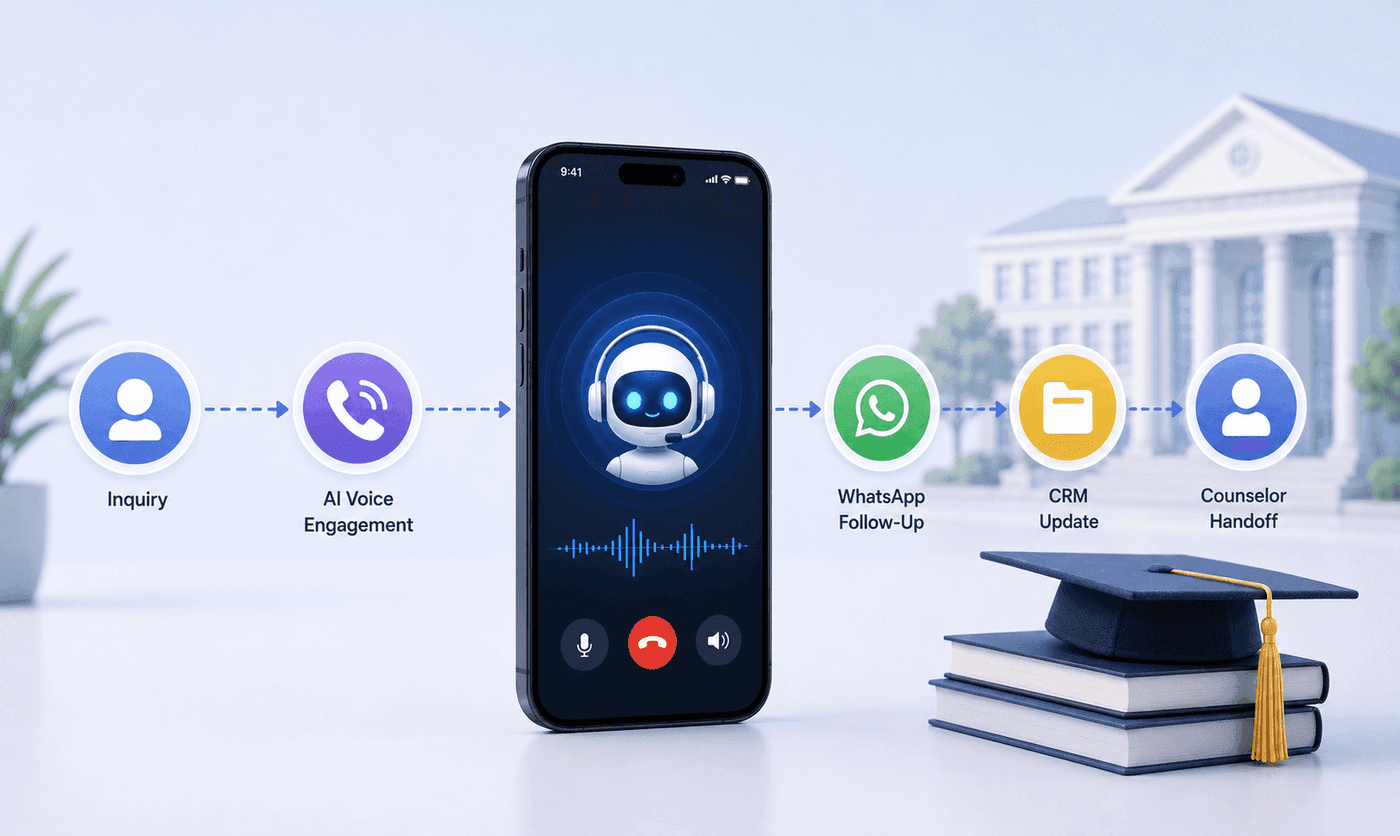
How an Executive Education Institution Automated Its Entire Admissions Workflow Using AI Voice and WhatsApp
How an executive education institution automated admissions from first call to counselor handoff with AI voice, WhatsApp, and CRM syncing.

How an EdTech Founder Reactivated a Dormant Lead Database Using WhatsApp Automation and AI-Assisted Qualification
How an EdTech founder reactivated a dormant inquiry database and acquired customers in week one using WhatsApp outreach and AI qualification.