Master Your Conversational Path with Granular WhatsApp Flow Control
Learn how the Continue from previous taps setting lets you design flexible or sequential WhatsApp journeys to boost completion rates.

Share This Article
Table of Contents
Master Your Conversational Path with Granular WhatsApp Flow Control
Automated conversations are powerful, but guiding a user from point A to point B isn't always a straight line. In a dynamic chat interface like WhatsApp, users can scroll back and interact with older messages, which can sometimes derail a carefully planned conversational flow.
Today, we're introducing a new setting that gives you precise control over the user journey in your WhatsApp agent. This feature directly addresses a common conversational design challenge, empowering you to build more intuitive and effective chatbot experiences.
Why This Matters for Conversational Design
Effective state management is the secret to a great chatbot user experience. It’s about knowing where the user is, where they've been, and where they should go next. This new feature provides a crucial layer of control over your bot's state.
We've framed this not as a simple toggle but as a fundamental choice between two design philosophies:
- Flexible (The Forgiving Path): Allows users to explore and navigate back to previous points in the conversation.
- Strict (The Focused Path): Enforces a sequential, forward-only path to ensure a process is completed without error.
Choosing the right approach is key to designing a successful WhatsApp bot.
The Problem: When Users Go Off-Script
Previously, if a user tapped a reply button or list menu item from an earlier message, the conversation would always jump back to that point. While this offers flexibility, it can break the logic of sequential flows.
Imagine a user in a multi-step checkout process. They’ve added an item to their cart (Step 1) and are now entering their shipping details (Step 2). If they scroll up and tap the "Add to Cart" button from Step 1 again, the flow reverts. This could lead to duplicate items, calculation errors, or simply a confusing state—a frustrating user journey that often results in abandoned carts.
The Solution: The "Continue from previous taps" Setting
The solution is a new flow-level setting called "Continue from previous taps". It lets you define how your WhatsApp agent handles interactions with older interactive messages.
- When ON (Default - Flexible Mode): The bot behaves as it always has. Tapping any button from any previous message in the flow will resume the conversation from that point.
- When OFF (Strict Mode): The bot will only respond to taps on buttons from the most recent interactive message it sent. Taps on older buttons are ignored, keeping the user on the intended conversational path.
Key Capabilities
Enforce Sequential Journeys
By turning the setting OFF, you can create strict, linear paths. This is perfect for processes where each step depends on the last, such as data collection forms, quizzes, appointment bookings, or checkout flows. It’s the ideal way to prevent users from going back in a WhatsApp flow when it would break the logic.
Support Flexible Navigation
By leaving the setting ON, you support an exploratory user journey. This is ideal for experiences like customer support FAQs or product discovery bots, where a user might want to jump back to a main menu to explore a different topic without starting over.
Instant Configuration
Changes to this setting apply instantly to your visual flow builder sessions. There’s no need to republish your entire flow, allowing you to test and iterate on your chatbot navigation strategy with speed.
How to Configure Your Flow
Configuring your WhatsApp flow control is simple:
- Open your agent’s Flow Builder.
- Click the gear icon (⚙️) in the top toolbar to open Flow Settings.
- Toggle "Continue from previous taps" on or off based on your needs.
This is a flow-level setting, meaning you can configure different behaviors for different flows within the same agent.
Real-World Scenarios: Choosing the Right Path
Scenario 1: The Strict Checkout Flow
An e-commerce bot needs to guide a user through a purchase. Here, you would turn "Continue from previous taps" OFF. This ensures the user moves from cart confirmation to payment to shipping details in a strict order, preventing them from accidentally jumping back and adding an out-of-stock item or re-applying an expired coupon code.
Scenario 2: The Flexible Support Bot
A customer support agent is designed to answer a wide range of questions. For this bot, you would leave "Continue from previous taps" ON. If a user asks about billing, then remembers they also had a question about product features, they can simply scroll up and tap the "Product Features" button from the main menu to easily switch topics.
Benefits of Precise Flow Control
- Prevent User Confusion: A focused path provides clarity and reduces the chance of user error, leading to a smoother experience.
- Increase Completion Rates: By eliminating confusing loops and dead ends, you ensure more users successfully complete goal-oriented flows.
- Empower Conversational Designers: This tool gives you the power to intentionally design the exact experience you envision, whether it's a guided procedure or an open-ended conversation.
Best Practices
- Default to ON (Flexible): Unless your flow follows a strict, sequential process, the default behavior is often the most user-friendly.
- Use OFF (Strict) for: Quizzes, step-by-step data collection, application forms, and checkout processes.
- Inform Your Users: When enforcing a strict path, consider adding a message like, "Please use the buttons in this message to continue," to gently guide users.
Conclusion
With the new "Continue from previous taps" setting, you are no longer limited to a single interaction model. You can now make a conscious, strategic decision to design a flexible user journey or a focused, sequential one. This granular control is key to building smarter, more effective conversational experiences that meet user expectations and drive results.
Ready to design more precise and intuitive conversational journeys? Log in to the Flow Builder to try this new setting, or start your free trial to build smarter WhatsApp agents today.
Frequently Asked Questions
The "Continue from previous taps" setting is ON by default for all new flows, providing a flexible user experience out of the box.
Navigate to the Flow Settings in the Visual Flow Builder and toggle the "Continue from previous taps" setting to OFF. This will make your WhatsApp bot ignore taps on any buttons except those in the most recent message.
Yes, this setting governs user interaction with both Reply Buttons and List Menus sent by your agent.
No. Changes take effect immediately for the next user message, with no need to republish the flow.
This setting only affects taps on interactive messages (buttons and lists). It does not change how your flow handles typed, free-text responses from users.
Frequently Asked Questions
What is the 'Continue from previous taps' setting in WhatsApp flows?
It is a setting in the Flow Builder that controls how your agent responds to user taps on buttons from older messages. When enabled (default), the flow jumps back to that point. When disabled, the agent only responds to buttons in the most recent message, creating a stricter conversational path.
How do I prevent users from going back in a WhatsApp flow?
To enforce a sequential, forward-only journey, navigate to the Flow Settings (gear icon) in the Flow Builder and toggle the 'Continue from previous taps' setting to OFF. This will make your agent ignore taps on older buttons.
When should I use a strict vs. a flexible flow navigation?
Use a flexible path (setting ON) for exploratory experiences like FAQ bots. Use a strict path (setting OFF) for sequential processes where order is critical, such as checkout flows, quizzes, or multi-step data collection forms.
Do I need to republish my flow after changing this setting?
No. Changes to the 'Continue from previous taps' setting take effect immediately for the next user message, allowing you to test and iterate on your conversational design without republishing the entire flow.
Does this setting affect typed user responses?
No, this setting only governs interactions with interactive elements like Reply Buttons and List Menus. It does not alter how your flow processes free-text, typed responses from users.
Related Case Studies
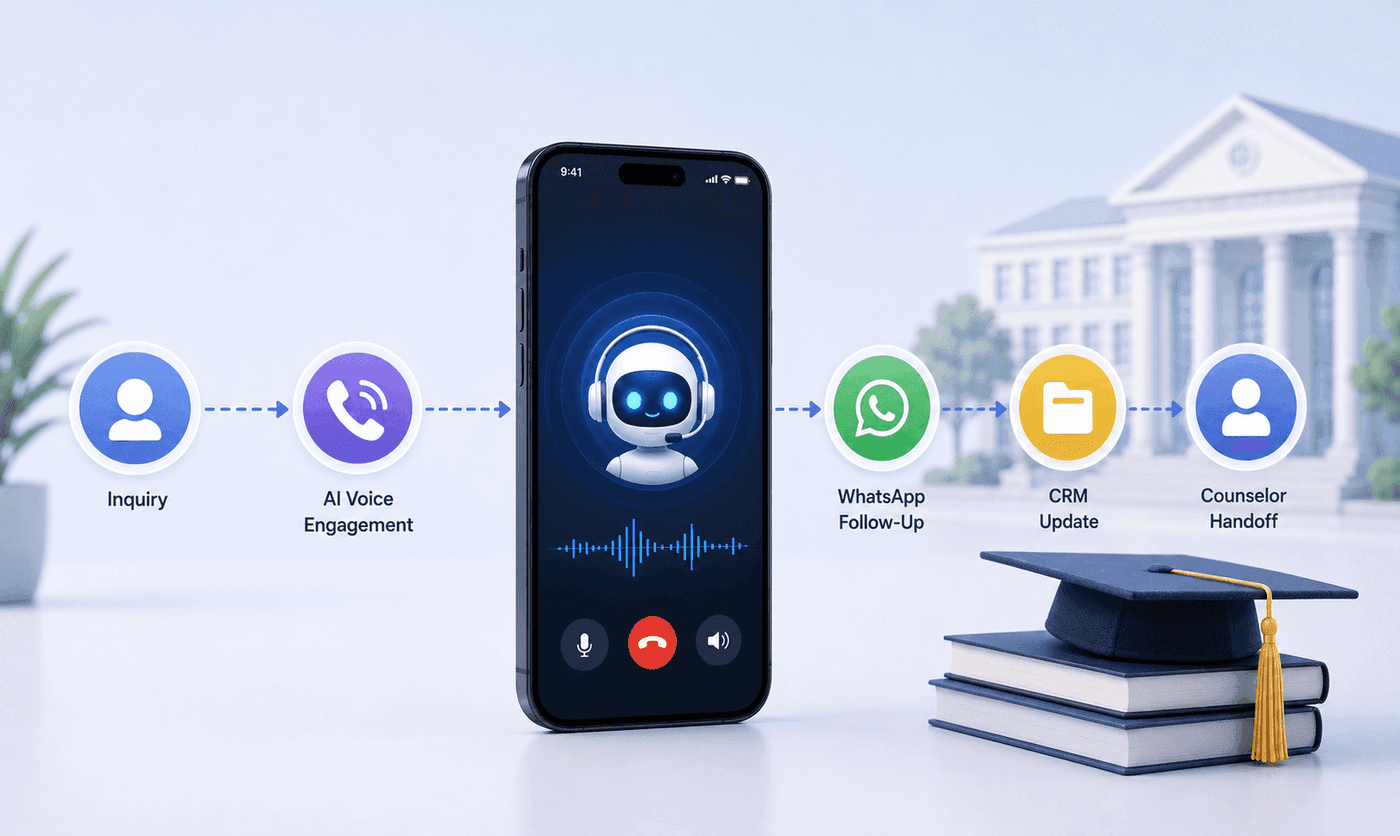
How an Executive Education Institution Automated Its Entire Admissions Workflow Using AI Voice and WhatsApp
How an executive education institution automated admissions from first call to counselor handoff with AI voice, WhatsApp, and CRM syncing.

How an EdTech Founder Reactivated a Dormant Lead Database Using WhatsApp Automation and AI-Assisted Qualification
How an EdTech founder reactivated a dormant inquiry database and acquired customers in week one using WhatsApp outreach and AI qualification.