Connect your Twilio number to Kipps AI voice agent for incoming calls
Connect your Twilio number to Kipps.AI and route all incoming calls through an AI voice agent for 24/7 automated support, faster resolution, and lower costs.

Introduction
If your business runs on Twilio for telephony, you can connect that number directly to a Kipps.AI voice agent and let AI handle every inbound call — no developer sprint, no custom SIP configuration, no IVR tree for callers to fight through. Once connected, calls to your Twilio number are answered by an AI agent that understands natural speech, looks up information from your knowledge base, and either resolves the caller's request or hands off to a human with full context.
This guide is written for founders, support leads, and operations teams who already own a Twilio number (or are about to provision one) and want to route incoming calls through Kipps.AI. It covers the full process end to end: what you need before you start, the step-by-step connection flow inside the Kipps.AI dashboard, what to do when something doesn't work as expected, and the practices that keep an inbound voice agent reliable once it's live.
It's worth being precise about direction here. This walkthrough is for incoming calls — calls a customer places to your Twilio number, which Kipps.AI then answers. If you want your AI agent to place calls out to customers (reminders, follow-ups, outreach), that's a different flow that uses SIP trunking rather than a simple webhook, and we cover it in a separate guide linked at the end of this post.
Prerequisites
Before you start the integration, make sure you have the following in place:
- An active Twilio account with billing enabled. A trial account can work for testing, but trial numbers carry restrictions (like a mandatory verification message on outbound legs) that can interfere with a production voice agent.
- A Twilio phone number already purchased and visible in your Twilio console. If you haven't bought one yet, Twilio lets you search for local, toll-free, or mobile numbers by country and capability — make sure the number you pick has Voice capability enabled, not just SMS.
- A Kipps.AI account (sign up here) with at least one voice agent already configured — its persona, knowledge base, and call-handling logic should be set up before you wire in a live phone number, so the first real caller doesn't reach an agent that hasn't been trained yet.
- Admin access to your Twilio console, since connecting a number typically involves updating that number's voice configuration to point at Kipps.AI.
- A few minutes to place test calls after setup, ideally from a different phone than the one you used to configure everything, so you can hear exactly what a real caller hears.
With those in place, the connection itself takes a few minutes.
How to Get Started with Twilio Incoming Calls on Kipps.ai
Step 1: Log in to Kipps.AI
Log in (or sign up) at Kipps.AI. If this is a new account, complete your workspace setup and create the voice agent you intend to connect this number to — you'll be attaching the phone number to that agent in the steps below.
Step 2: Open the phone number integration flow
From your voice agent's dashboard, start the flow to integrate a Twilio incoming number.
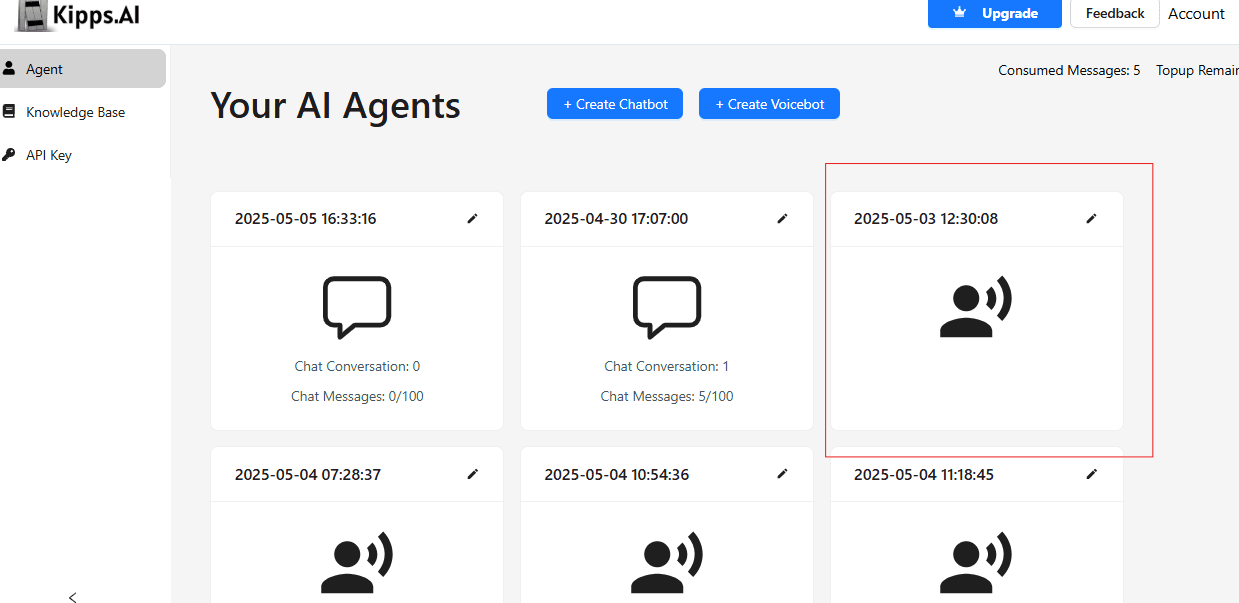
This is the entry point for connecting any telephony provider — Kipps.AI will ask which provider you're connecting (Twilio, in this case) and whether the number is for incoming or outbound calls.
Step 3: Go to the Phone Number section
Navigate to the Phone Number section of your workspace, where all connected and available numbers are managed.
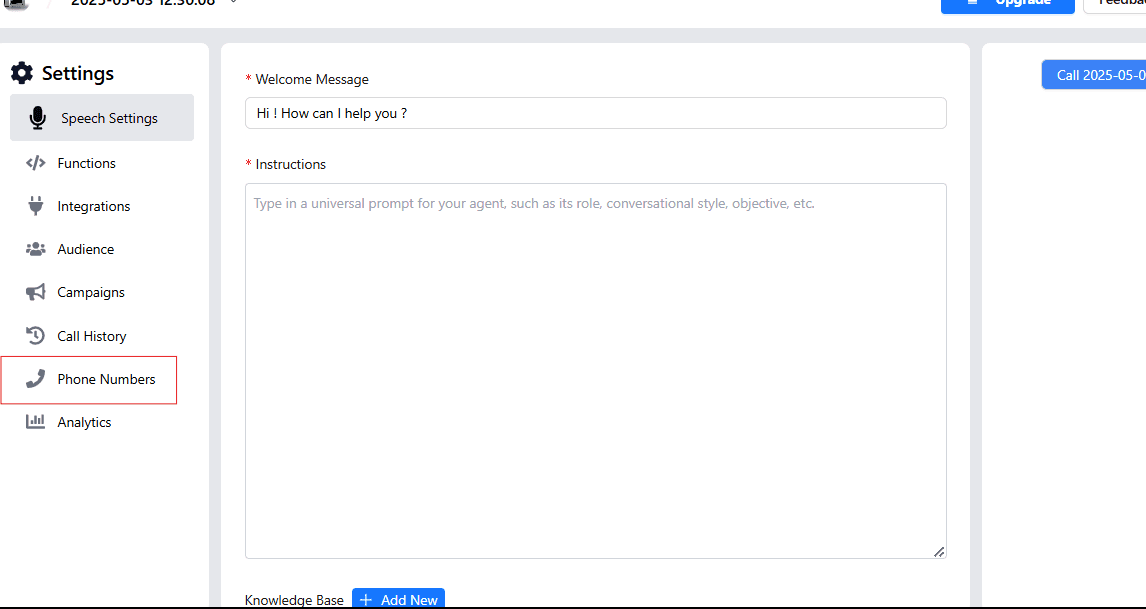
This is also where you'll come back later to check a number's status, swap which agent it's routed to, or disconnect it.
Step 4: Click "Connect phone number"
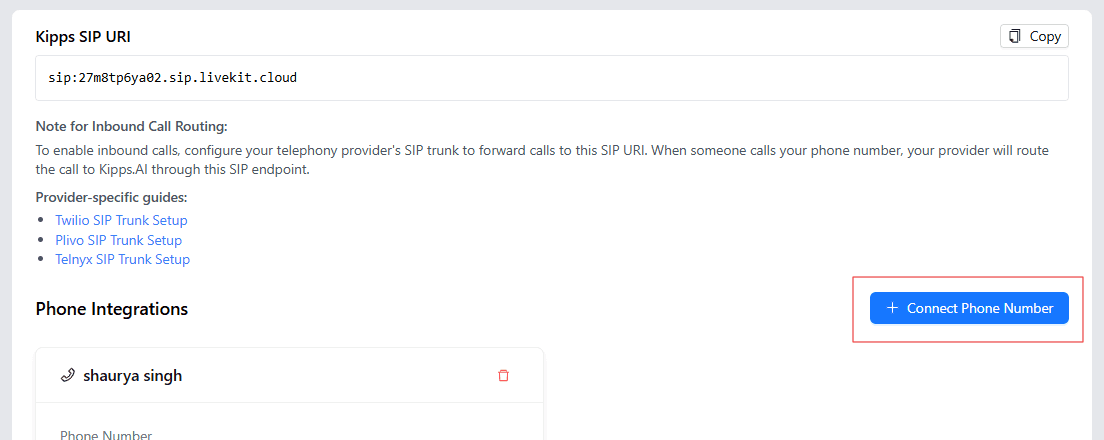
This opens the form where you'll register your existing Twilio number with Kipps.AI.
Step 5: Enter a nickname and your Twilio number
Give the connection a clear, human-readable nickname (e.g., "Support Line — Mumbai") and enter your Twilio number in E.164 format (with the country code, e.g., +91XXXXXXXXXX).
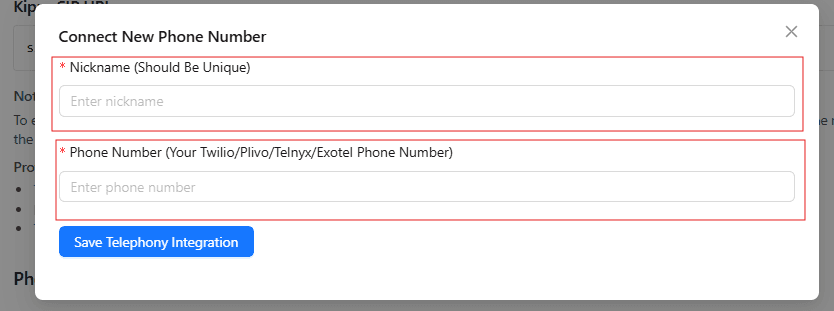
The nickname matters more than it looks like it should once you have several numbers connected — a clear naming convention (by region, brand, or department) saves confusion later.
Step 6: Save the telephony integration
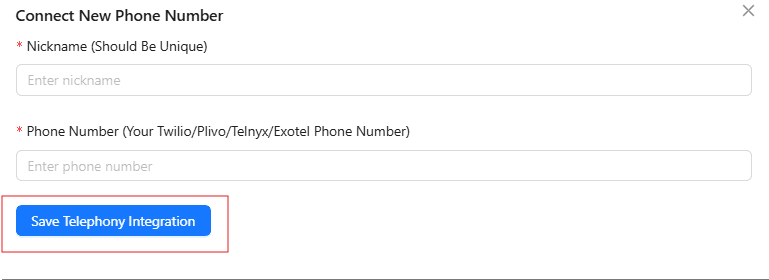
Saving generates the configuration Kipps.AI needs on its side, including the webhook endpoint that will handle inbound call events. Depending on your setup, you may need to copy that webhook URL into your Twilio number's voice configuration so Twilio knows to hand incoming calls to Kipps.AI — check the field shown on this screen for the exact value to use.
Step 7: Enable inbound calls
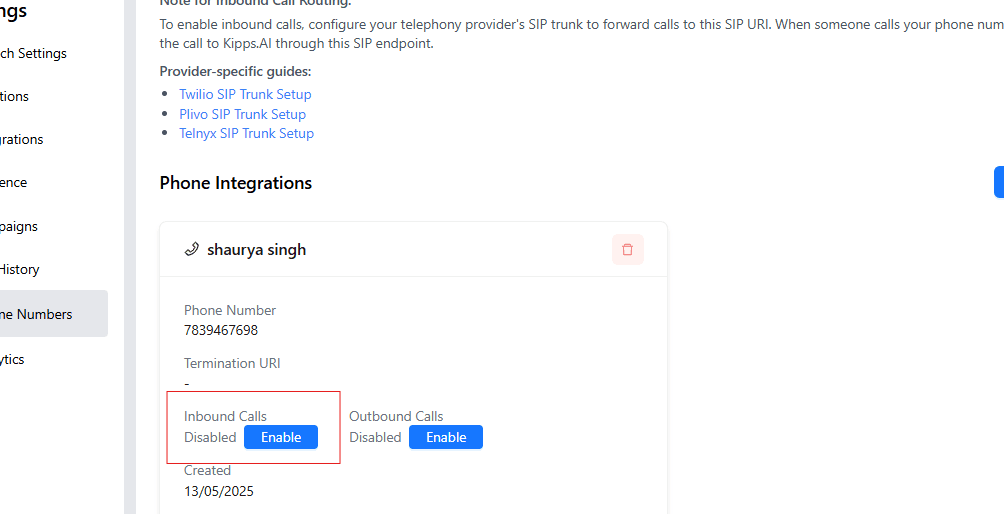
Toggling this on makes the integration live. From this point forward, calls to your Twilio number are routed to your Kipps.AI voice agent. Place a test call immediately after enabling to confirm the agent answers, understands your voice, and behaves the way you configured it.
Troubleshooting
- The call doesn't connect to the AI agent at all. Usually a webhook mismatch — confirm the voice webhook on your Twilio number's configuration page points to the exact URL Kipps.AI generated in Step 6, with no typos, and that the HTTP method matches what Twilio expects.
- The call connects, but there's dead air. Verify the voice agent tied to this number is fully published, not sitting in draft or paused. A number can be "connected" while the agent behind it isn't live.
- Calls ring through to voicemail or a Twilio error instead of the agent. Check your Twilio account balance and number status — a suspended or unfunded account fails silently before the call ever reaches Kipps.AI.
- Audio is choppy or delayed. Usually a network or codec issue rather than a configuration problem. Test from a stable connection, and if it persists across networks, contact support with a recent call ID so the audio path can be traced.
- Webhook signature or auth errors in your logs. Typically means the webhook URL was copied incorrectly or an old integration is still referenced. Re-saving the integration and re-pasting the fresh webhook URL usually resolves this.
- The number shows "connected" but calls still don't route. Check for a conflicting configuration on the Twilio side — another application or a legacy TwiML Bin still attached to the number's voice settings takes priority over the Kipps.AI webhook.
If you're stuck, reach out through kipps.ai/contact-sales with your account details and the approximate time of the failed call.
Best Practices
- Test with a non-production number first, especially if this is an existing support line customers already call.
- Review call transcripts and recordings regularly, especially in the first few weeks — they're the fastest way to find gaps in your agent's knowledge base or escalation logic.
- Set up a clear escalation path. Even a well-trained agent will encounter requests it shouldn't handle alone — make sure it knows when to transfer to a human, and that a human is reachable when it does.
- Have a fallback plan for provider outages. Keep a documented manual process (call forwarding, a status-page check) for the rare occasion your primary path is degraded.
- Monitor call volume and duration trends, not just individual calls — a spike in handle time or a drop in resolutions is often the earliest signal something upstream needs attention.
- Keep your nickname and number inventory tidy as you connect more numbers across regions or campaigns.
Frequently Asked Questions
No. Connecting a Twilio number for incoming calls is a webhook-based integration handled entirely inside the Kipps.AI dashboard — no code, and no manual SIP trunk configuration required.
Yes. Each number is connected and managed independently from the Phone Number section, so you can route different numbers — different regions, brands, or departments — to different agents.
A well-configured agent recognizes when a request is outside its scope or requires human judgment and escalates the call, ideally with a warm transfer so the caller doesn't have to repeat themselves.
It can for basic testing, but trial accounts have limitations (such as mandatory verification prompts and number restrictions) that make them unsuitable for production. Upgrade to a paid Twilio account before going live with real customer traffic.
Return to the Phone Number section in your Kipps.AI dashboard, where connected numbers can be reassigned to a different agent or disconnected entirely.
Read Next
- How to connect your Twilio number to Kipps.AI voice agent for Outgoing calls
- How to connect your Plivo number to Kipps.AI voice agent for Incoming calls
Get Started
Integrating Twilio with Kipps.AI turns your existing phone number into a 24/7 AI-staffed line — no missed calls, no added headcount, and a consistent experience on every single call. Talk to our team if you'd like help planning the rollout, or explore the platform yourself at kipps.ai.