

Introduction
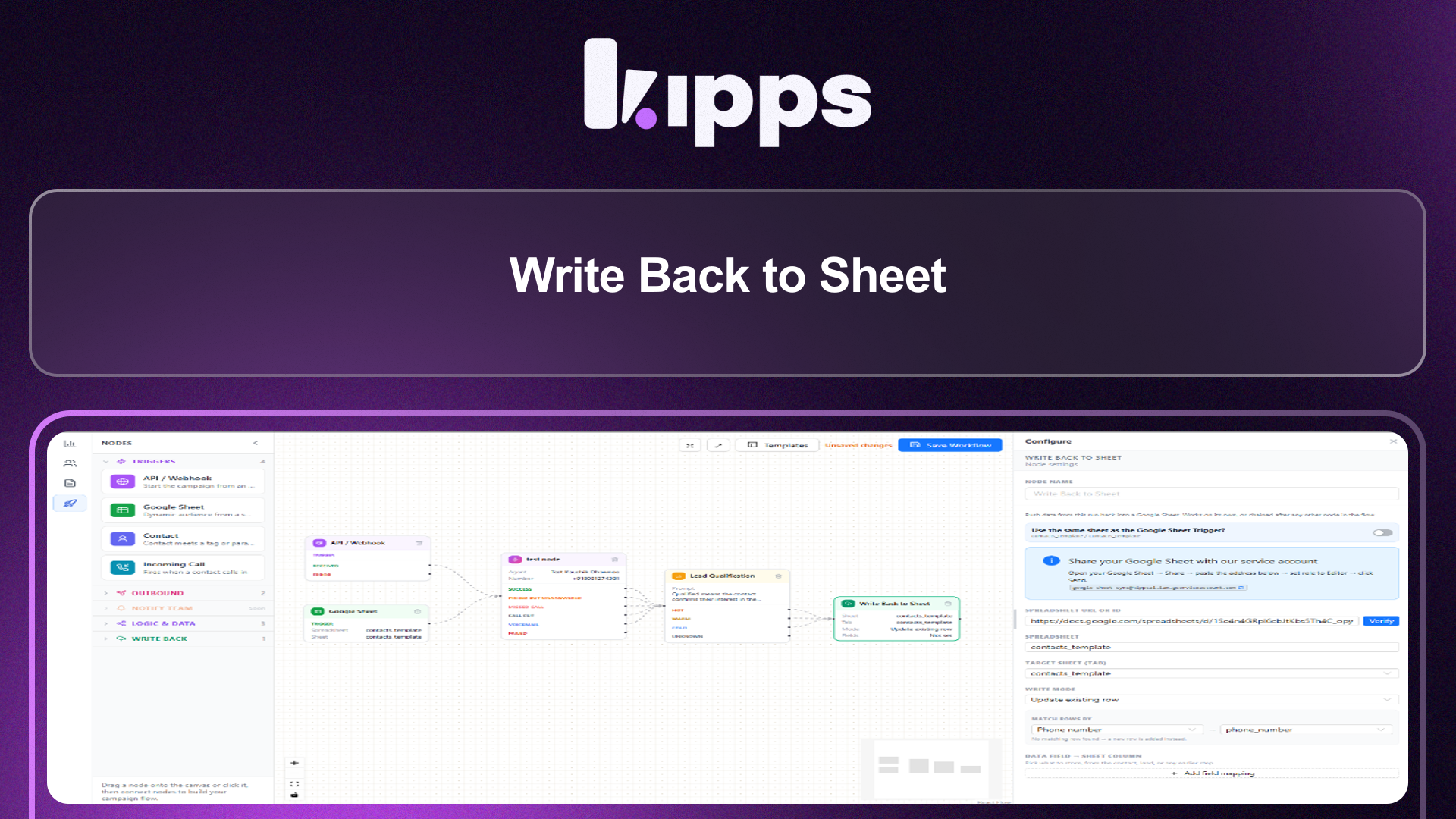
We're excited to introduce the new "Write Back to Sheet" node, a powerful addition to the workflow builder that gives you granular control over how campaign data is written to Google Sheets. This node eliminates the reliance on automatic background syncs, allowing you to explicitly define when and what data is transferred.
Feature Highlights
- Explicit Sheet Write-Backs: Integrate data writing directly into your campaign workflows, ensuring data is transferred precisely when needed.
- Flexible Data Mapping: Map any data from earlier in the workflow — including call outcomes, WhatsApp statuses, qualification scores, and extracted variables — to specific Google Sheet columns.
- Intelligent Row Management: Choose to add data as a new row, update an existing row based on a trigger or matching field, or safely fall back to adding a new row if no match is found.
- Direct Column Mapping: Map data to real, existing sheet columns by their letter and header, ensuring accurate and predictable data entry.
How to Use
- Open a campaign's workflow builder and drag the "Write Back to Sheet" node onto the canvas from the Write Back section of the sidebar. It can be used standalone or chained after any other node (Phone Call, WhatsApp Template, Lead Qualification, Create/Update Variable, etc.).
- If a Google Sheet Trigger already feeds into this node, flip "Use the same sheet as [Trigger name]" on to reuse its spreadsheet and tab automatically. Otherwise, paste a Google Sheet URL, click Verify (after sharing the sheet with the service account shown), and pick the target tab.
- Choose a Write Mode: "Add as new row" appends a fresh row each run; "Update existing row" either updates the row that originally triggered the workflow (when connected to a Google Sheet Trigger on the same sheet) or matches an existing row by a chosen field/column, falling back to adding a new row if nothing matches.
- Under "Data Field → Sheet Column", map whatever should be written — contact fields, lead status/source, or outputs from any upstream node (call status/transcript/duration, WhatsApp delivery status, qualification results, extracted variables) — to a real column in the sheet, picked by its actual column letter and header.
- Save the workflow. Each time a lead reaches this node during a run, it writes the mapped values into the sheet.
Benefits
- Granular Control: Puts sheet write-backs under your control as an explicit step in the flow, instead of a fixed background job you can't configure.
- Comprehensive Data Integration: Works with data from anywhere earlier in the flow, not just the immediately preceding node — call outcomes, transcripts, WhatsApp status, qualification scores, and extracted variables are all mappable.
- Smart Data Handling: Can update the exact row a lead came in on, or find the right row to update by matching a field, with a safe fallback to adding a new row.
- Accurate Mapping: Maps to real, existing sheet columns by position, so what you configure is exactly what gets written.
Example Workflow
Imagine a campaign where leads are qualified via a phone call. After the call, you want to record the call status, duration, and any notes from the agent directly into a Google Sheet that tracks lead progress. You would chain the "Write Back to Sheet" node after the "Phone Call" node. In the "Write Back to Sheet" node, you'd map the call status, duration, and notes from the phone call output to specific columns in your Google Sheet. If the lead originated from that same sheet, you could choose to update their existing row; otherwise, a new row would be added for this lead's call details. This ensures that your Google Sheet is always up-to-date with the latest interaction data, without manual intervention.
Result
Users can now precisely control when and what campaign data is written to Google Sheets, integrating this crucial step directly into their automated workflows for enhanced data accuracy and operational efficiency.
See Also
- Google Sheet Trigger
- Lead Qualification
- Create/Update Variable
- Phone Call node
- WhatsApp Template node
Ready to try these new features?
Experience the latest improvements and see how they can enhance your workflow. Get started today or learn more about what's coming next.
More Changelog Updates
Related Blog Posts
AI Customer Service Playbook (2026): Build Smarter, Faster, Cheaper Support
The 2026 AI customer service playbook: what agentic AI can resolve today, real benchmarks from Gartner and Salesforce, the core tech stack and a 5-step rollout plan.
Read more
Kipps.AI vs Botpress (2026): Pricing, Voice AI & Which to Choose
Kipps.AI vs Botpress in 2026: compare voice AI, WhatsApp, Botpress's new per-conversation pricing vs Kipps credits, and setup speed to pick the right AI agent.
Read more
Kipps.AI vs Decagon (2026): Features, Pricing & Which AI Agent to Choose
Kipps.AI vs Decagon in 2026: compare voice AI, WhatsApp, pricing models (per-conversation vs credits), customers and setup to pick the right AI agent platform.
Read more