Kipps.AI integration with Squarespace
Kipps AI chatbot and Squarespace website integration blog

About Squarespace
Squarespace Website Builder offers a sleek, user-friendly platform for crafting visually stunning websites. Ideal for creatives, entrepreneurs, and small businesses, it provides elegant, customizable templates and an intuitive drag-and-drop editor. Users can easily create responsive sites that look great on any device. With built-in blogging, e-commerce, and SEO tools, Squarespace supports comprehensive online presence and growth. Integrated analytics and marketing features help optimize performance and reach. Renowned for its design-centric approach, Squarespace also offers reliable 24/7 customer support. Whether building a portfolio, blog, or online store, Squarespace combines aesthetic appeal with powerful functionality.
Pairing Squarespace's design polish with a Kipps.AI conversational agent gives visitors an always-on way to ask questions, get product recommendations, or book a call — without touching a single line of custom theme code. Because Squarespace supports code injection natively, adding Kipps.AI to any eligible Squarespace site takes just a few minutes and works the same way whether you run a portfolio, a blog, or an online store. This guide walks through the full setup, what to check if the widget doesn't show up, and how to configure it so it actually helps convert visitors rather than just sitting quietly in the corner of the page.
Before you start: prerequisites
Before jumping into Squarespace's settings, make sure you have the following ready:
- A Squarespace plan that supports code injection. Code Injection is available on Squarespace's higher-tier plans. If your current plan doesn't expose this option, you'll need to upgrade before you can add third-party scripts like the Kipps.AI widget.
- A Kipps.AI account with a configured agent. Sign up at app.kipps.ai, create your chatbot or voice agent, and configure its knowledge base, tone, and business hours so it's ready to talk to real visitors before you go live.
- Your Kipps.AI embed script. Log in to your Kipps.AI dashboard and copy your site's unique embed snippet (usually found in an install or integrations section of the dashboard). This is the code you'll paste into Squarespace.
- Site owner or admin access. Code Injection settings are typically restricted to site owners and admins, so confirm your Squarespace account role has permission to edit advanced settings.
- A few minutes and a willingness to hard-refresh your browser. Squarespace and browser caching can occasionally delay a newly injected script from appearing right away.
Step-by-step integration guide
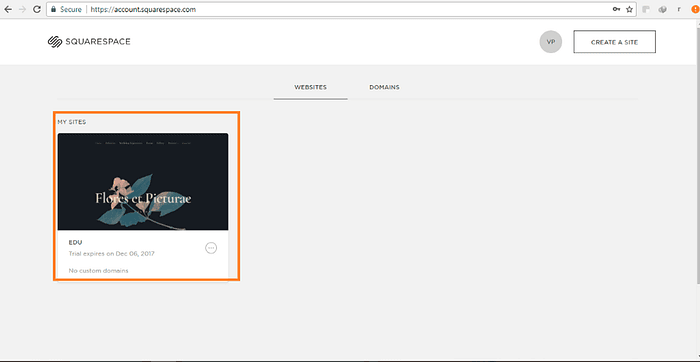
Step 1: Log in to your account and select your website
Visit Squarespace and log in to your account. Under the "Website" tab, click the website where you want to add the live chat plugin. If you manage multiple Squarespace sites under one account, double-check you've selected the correct one — code injected on one site does not carry over to another.
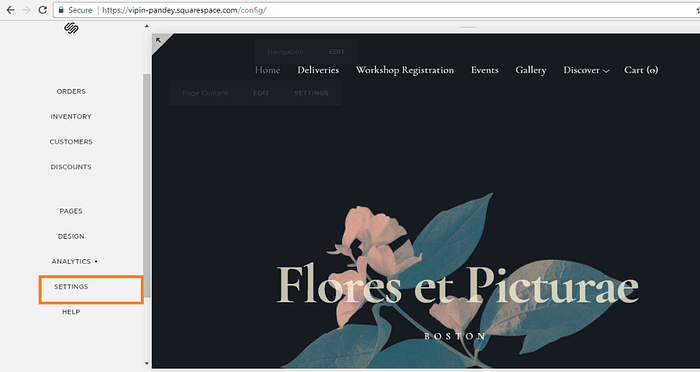
Step 2: Open settings
Choose Settings from the left navigation panel. This is the same settings area where you manage domains, billing, and site-wide preferences, so you're in the right place if you also see options for things like SEO or members.
Step 3: Open advanced settings
Next, navigate to the "Website" section and click Advanced to open advanced settings. This is where Squarespace groups its more technical, developer-facing tools — things like redirects, SSL, and the code injection console you're about to use.
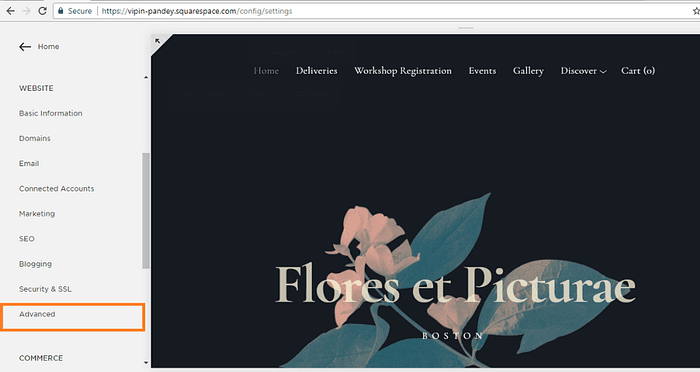
Step 4: Open the code injection console
From the advanced settings menu, open the Code Injection console. You'll typically see two boxes here — one for the <head> of your site and one for the footer. These correspond to code that loads before the page content and code that loads after it, respectively.
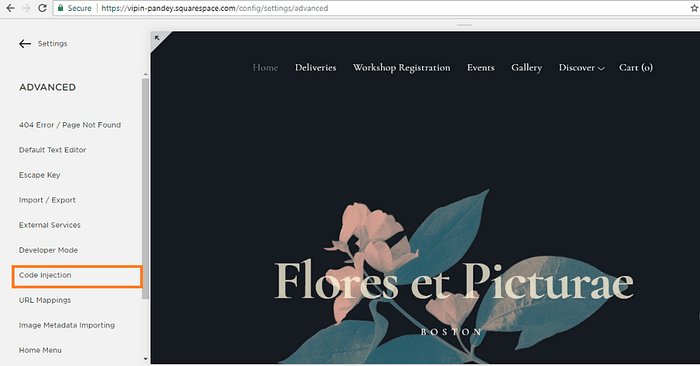
Step 5: Insert your plugin script
Paste the copied JavaScript code from your Kipps.AI dashboard into the footer section. The footer is the recommended location for chat widget scripts because it lets the rest of your page load first, so the widget doesn't slow down your site's initial load time or hurt your performance scores.
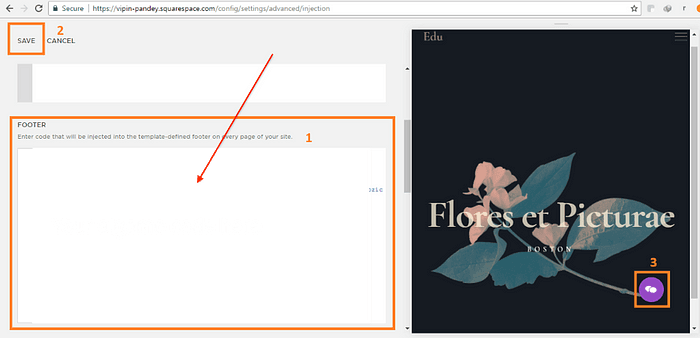
Click Save and you are good to go! Squarespace applies footer code injection site-wide, so the Kipps.AI widget will appear on every page of your site by default, including your homepage, product pages, and blog posts. Open your site in a new browser tab (or an incognito window, to avoid a cached version) and confirm the chat bubble appears, usually in a bottom corner of the screen.
Troubleshooting common issues
Most integration problems come down to a handful of predictable causes. Work through this list before assuming something is broken:
- The widget doesn't appear at all. Confirm the script was pasted into the footer box and that you clicked Save (not just navigated away). Then hard-refresh the page — Squarespace and your browser both cache pages aggressively, so a normal refresh sometimes isn't enough.
- You're on the wrong plan. If the Code Injection option is greyed out or missing entirely from your Advanced settings, your current Squarespace plan likely doesn't include it. Check your plan tier and upgrade if needed.
- The widget appears on some pages but not others. Code Injection added through Settings applies site-wide, so if it's missing on a specific page, check whether that page has its own page-level code injection that might be overriding or duplicating the site-wide script.
- Styling looks off, or the widget overlaps other elements. Squarespace templates vary widely in their CSS. If the chat bubble collides with a sticky header, announcement bar, or cookie banner, check your Kipps.AI widget position settings in your dashboard — most widgets let you adjust corner placement and offset.
- The widget loads on desktop but not mobile, or vice versa. Preview your site in Squarespace's mobile view and also test on an actual phone, not just a resized browser window. Some templates hide footer-injected elements behind mobile-specific layout rules.
- Nothing happens after pasting, and no error shows. Double-check you copied the entire script from Kipps.AI, including the opening and closing
<script>tags — a partial paste is a common and easy-to-miss mistake. - A security policy seems to block the script. This is rare on Squarespace but can happen if your site has additional security headers configured through a custom domain provider. If your browser's developer console shows a blocked-by-policy error, contact your DNS or hosting provider to confirm scripts from Kipps.AI's domain are allowed.
Best practices for a smooth launch
- Test in a private browser window before calling it done. This avoids false confidence from cached pages that were loaded before you added the script.
- Set accurate business hours in your Kipps.AI dashboard. Visitors expect a clear signal of whether they're chatting with an AI, waiting for a human, or reaching you outside working hours — configure this once so the agent's responses match reality.
- Keep the widget in a corner that doesn't fight your existing UI. If your Squarespace template already has a sticky "Contact Us" button or a promotional banner, coordinate placement so the two don't overlap or compete for the same screen real estate, especially on mobile.
- Review your knowledge base before launch, not after. The chat widget is only as useful as the information behind it — take a few minutes to make sure your Kipps.AI agent knows your actual products, policies, and FAQs before pointing real traffic at it.
- Check page load performance after adding the script. A quick pass through any page-speed testing tool will confirm the widget isn't meaningfully slowing down your site — footer placement should keep the impact minimal.
- Revisit the integration after any template change. Switching Squarespace templates occasionally resets certain settings, so confirm the widget still appears correctly after a redesign.
Frequently Asked Questions
No. Squarespace's built-in Code Injection panel is designed for non-developers — you're pasting a ready-made script into a text box, with no custom coding required.
It shouldn't, if installed as described. Placing the script in the footer means it loads after your page's main content, so it has minimal impact on initial load speed.
The Code Injection panel in Settings applies your script site-wide. If you need page-specific control, check whether your Squarespace plan supports per-page code injection, or manage visibility rules from within your Kipps.AI dashboard if that option is available on your plan.
You'll need a plan that includes Code Injection. If you're unsure whether your current plan qualifies, check your plan details in Squarespace billing or upgrade to a tier that includes advanced website settings.
Some Squarespace actions, like restoring an earlier version of a page or switching templates, can reset Code Injection fields. Check Settings → Advanced → Code Injection to confirm the script is still there, and re-paste it if needed.
Ready to give your Squarespace visitors an always-on way to get answers? Sign up for Kipps.AI and have your widget live in minutes, or talk to our team if you'd like help planning your rollout. For more updates, follow Kipps.AI on LinkedIn or explore everything the platform can do at kipps.ai.