Kipps.AI integration with GoDaddy
Kipps AI chatbot and GoDaddy website integration blog

About GoDaddy Website builder
GoDaddy Website Builder offers an intuitive platform for creating professional websites with ease. Ideal for beginners and small businesses, it features drag-and-drop functionality, customizable templates, and integrated marketing tools. Users can quickly design responsive websites optimized for both desktop and mobile devices. With built-in SEO tools, social media integration, and e-commerce capabilities, GoDaddy ensures your site can grow with your business needs. The platform also provides 24/7 customer support, making it a reliable choice for those needing assistance. Whether launching a blog, portfolio, or online store, GoDaddy Website Builder simplifies the web development process.
GoDaddy is often the starting point for small businesses that just need a site up quickly, which makes it a natural fit for a chatbot that helps those same businesses punch above their weight — answering common questions, capturing leads, and keeping visitors engaged outside of business hours. GoDaddy's Website Builder supports adding custom HTML through a dedicated section type, so getting Kipps.AI running doesn't require a developer or a plan upgrade in most cases. This guide walks through the full process, what to check if something doesn't work as expected, and how to configure the widget so it actually earns its place on your site.
Before you start: prerequisites
- A GoDaddy Website Builder site with the HTML/custom code section available. Most current GoDaddy Website Builder plans support this, but it's worth confirming the option appears in your editor's Add Section menu before you get started.
- A Kipps.AI account with a configured agent. Sign up at app.kipps.ai, build out your agent's knowledge base, and set its business hours before pointing real traffic at it.
- Your Kipps.AI embed script, copied from the install or integrations section of your Kipps.AI dashboard.
- Owner or editor access to your GoDaddy account, since managing your website is typically handled under "My Products" and requires the appropriate account permissions.
- A few minutes to preview before publishing, since GoDaddy's builder lets you check your changes before they go live to visitors.
Step-by-step integration guide
Step 1: Log in and open your website's editor
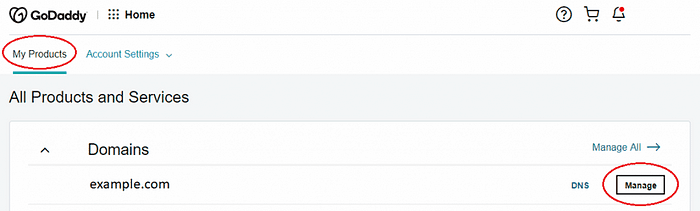
Log in to your GoDaddy account, then click My Products under the account user dropdown option at the top. Under the "All Products and Services" section, you'll see your "Websites" section — click Manage under the website you want to edit.
Step 2: Enter the website builder
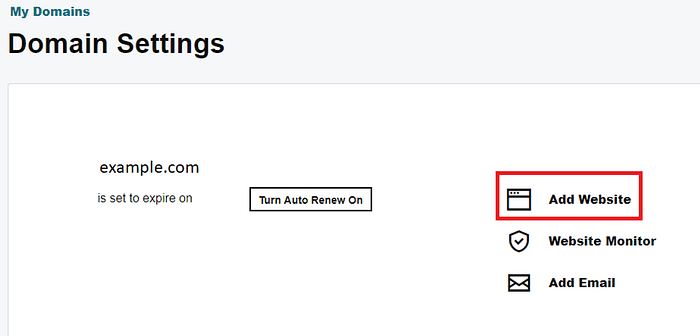
Click Add Website, or in most cases Edit Website, in the Website Builder to start editing. This opens GoDaddy's drag-and-drop editor, the same interface you use to add text, images, and other sections to your site.
Step 3: Add a new section
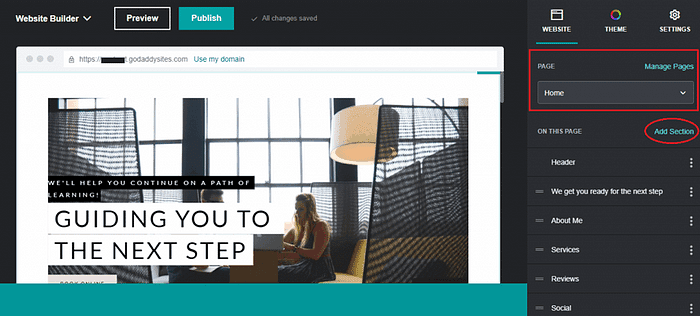
Click the PAGE section, select the page you want to add the Kipps.AI live chat to, and then select Add Section. Because the chat widget renders as a floating element regardless of where its section sits on the page, you don't need to worry about precise placement within the page layout — it will still appear as a corner chat bubble once published.
Step 4: Choose the HTML section type
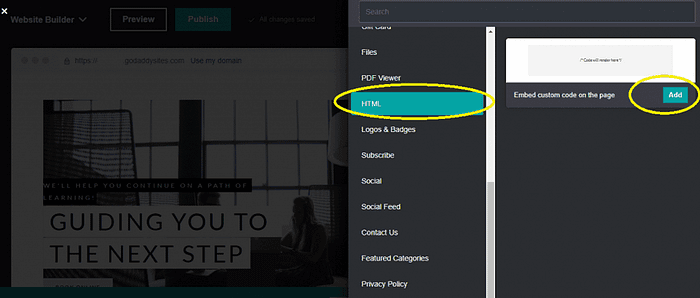
Choose HTML as the section type and click the Add button. This tells GoDaddy's builder to treat the section as raw code rather than one of its visual content blocks.
Step 5: Add your live chat script
Paste your Kipps.AI live chat code snippet into the Custom Code field.
After pasting into the "Custom Code" field, you can specify a height for the widget's container in the "Forced Height" section if prompted — this generally doesn't need to be large, since the chat widget renders itself as a floating overlay rather than a fixed block of content. Click Done at the top of the website builder panel once you're finished.
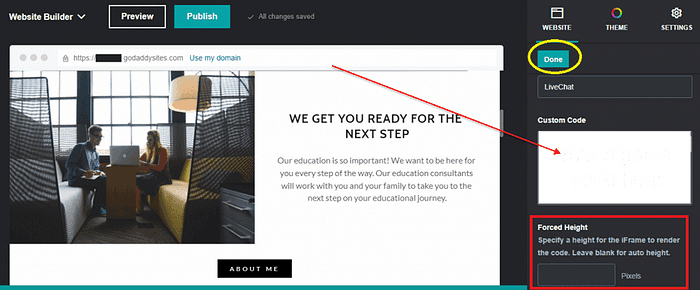
Click Preview or Publish at the top of the panel — you can now view the Kipps.AI live chat widget on your GoDaddy website. Use Preview first to confirm everything looks right before making the change visible to live visitors.
Troubleshooting common issues
- The widget doesn't appear after publishing. Confirm you clicked Done on the HTML section before navigating away, then Publish (not just Preview) to push the change live. Hard-refresh your browser or check in a private window to rule out a cached page.
- The HTML section type isn't available in Add Section. This can happen on more limited GoDaddy plans. Check your current plan's feature list, or contact GoDaddy support to confirm whether custom HTML sections are included.
- The widget shows on one page but not others. GoDaddy's Website Builder generally requires adding the HTML section to each page individually unless your template has a shared, repeating element. Add the section to every page where you want the widget to appear, or check if your theme supports a shared footer/header area.
- Nothing happens and there's no error. Double-check the full script was pasted into the Custom Code field without being cut off, including opening and closing script tags.
- The chat bubble overlaps another element on the page. GoDaddy templates sometimes include their own floating buttons (call now, social links, promotions). Check your Kipps.AI dashboard's widget position settings to move the bubble to an open corner.
- The widget looks fine on desktop but not mobile. Use GoDaddy's mobile preview toggle and also check on a real device — the "Forced Height" setting from Step 5 can behave differently across screen sizes if set too rigidly.
Best practices for a smooth launch
- Preview before you publish, every time. GoDaddy's builder makes this easy, and it catches placement or display issues before real visitors see them.
- Set accurate business hours in your Kipps.AI dashboard so visitors get a clear, honest signal about when they're chatting with the AI versus waiting for a human reply.
- Add the HTML section to every page you want covered, or confirm your GoDaddy template's shared elements before assuming site-wide coverage from a single section.
- Fill in your agent's knowledge base with real information — services, pricing, hours — before sending traffic to the site, especially important for the small businesses that make up much of GoDaddy's user base.
- Check the widget on mobile specifically, since GoDaddy Website Builder sites often see a large share of mobile visitors and layouts can behave differently there.
- Revisit the integration after major template or section changes, since editing your page layout can sometimes move or remove the custom HTML section.
Frequently Asked Questions
No. GoDaddy's Website Builder includes an HTML section type built specifically for pasting third-party scripts like the Kipps.AI widget, without needing to write or edit code.
Not necessarily — it depends on your template. In most cases you'll need to add the HTML section to each page individually, unless your GoDaddy theme includes a shared footer or header element that repeats across pages.
This varies by GoDaddy Website Builder plan. If you don't see the HTML option in Add Section, check your current plan's included features or reach out to GoDaddy support to confirm.
The widget renders as a floating overlay, so it shouldn't need to occupy layout space. If it visually overlaps something else, check the widget's position setting in your Kipps.AI dashboard and adjust it to a different corner.
Yes. Use GoDaddy's Preview option after adding the HTML section to check the widget's appearance and behavior before clicking Publish.
Help your GoDaddy site answer customer questions around the clock. Sign up for Kipps.AI and have your widget live in minutes, or talk to our team if you'd like help planning your rollout. Learn more about the platform at kipps.ai.