AI-Powered WhatsApp Campaigns | Boost Engagement | Kipps.AI
Run interactive, personalized WhatsApp campaigns using AI agents. Learn how Kipps.AI helps you automate outreach and increase conversions.

Share This Article
Table of Contents
How to Run a WhatsApp Campaign with an AI Agent
Qualifying leads manually takes time and slows down your sales funnel. A rep working through a spreadsheet of contacts one by one — calling, texting, waiting for replies — can't move at the speed leads expect, and the ones who wait longest for a reply are often the ones most likely to buy from whoever answers first.
With a WhatsApp AI agent, you can automate this: reach an entire list of contacts at once, engage each one with a structured line of questioning, and let the agent qualify them in real time. This filters serious buyers from casual browsers and moves qualified leads into your CRM without manual effort.
This guide covers setting up an outbound WhatsApp campaign in Kipps.AI — from connecting your WhatsApp Business account through building your audience list and configuring the lead qualification logic your agent will run.
Why It Matters
WhatsApp has significantly higher open and reply rates than email or SMS in most markets, because it's a channel people already check constantly and trust for personal conversations.
An AI agent running a WhatsApp campaign lets you ask qualifying questions consistently, score leads in real time based on their actual answers, and work 24/7 — engaging a contact the moment they reply, whatever hour that happens to be. This boosts sales team productivity and improves lead quality: your team spends time talking to people who've already shown intent, instead of chasing a raw list.
Before You Start: Prerequisites
Running an outbound campaign is a bigger commitment than a passive support agent, so plan ahead:
- A connected WhatsApp Business account — your WhatsApp integration already set up in Kipps.AI (see the WhatsApp integration guide if you haven't done this yet).
- A clean, opted-in contact list. Contacts need a valid basis for being messaged — a form opt-in, a previous interaction, or an existing customer relationship. A purchased or scraped list is a policy risk and a poor source of leads.
- A CSV of your audience formatted to match what Kipps.AI expects, generally including phone number and name at minimum.
- An approved message template for your initial outreach, since any message initiating contact outside an active window must use a template Meta has reviewed and approved in advance.
- A qualification framework already thought through — what determines a "qualified" lead, and what should trigger it being flagged for your sales team.
A Note on WhatsApp Campaign Policy
Because a campaign is outbound messaging to a list, WhatsApp's policy rules apply directly and matter more here than for a reactive support agent. Every contact needs to have opted in, your initial message must use an approved template, replies open a 24-hour free-form window, and opt-outs must be respected immediately.
Check Meta's current WhatsApp Business Platform documentation for specifics before running a campaign at scale, since exact rules and enforcement can evolve.
How to Get Started
Step 1: Log in or sign up
Log in to your Kipps.AI account.
Step 2: Create your chatbot
Create the chatbot that will run your campaign.

Step 3: Open the Integration section
Click on the Integration section from your chatbot's dashboard.

Step 4: Connect WhatsApp Business
Choose WhatsApp Business and complete the integration if you haven't already connected your account.

Step 5: Open the Audience section
Click on the Audience section, where you'll build the contact list your campaign will reach.

Step 6: Create a new audience
Click Create to start a new audience list.

Step 7: Download the CSV format
Download the format template, which shows exactly how your contact data needs to be structured.

Step 8: Review the format
Match your columns to the expected format exactly to avoid upload errors later.

Step 9: Upload your CSV
Upload your completed file. This is a good moment to confirm every contact has a valid opt-in basis — easier to clean a list now than after a campaign is running.

Step 10: Map phone number and name fields
Select which columns correspond to phone number and name so Kipps.AI maps your data correctly.

Step 11: Continue
Click Continue.

Step 12: Name and describe your audience
Give this audience a clear name and description — useful once you're running several campaigns at once.

Step 13: Submit your audience
Click Submit to save the list.

Step 14: Go to the Campaign section
With your audience ready, select Campaign to build the actual outreach.

Step 15: Create a new campaign
Click Create Campaign.

Step 16: Configure your campaign
This is where the details of your campaign come together:
- Enter the campaign name — something specific enough to identify it later, especially once you're running several at once.
- Select the audience you built in the earlier steps.
- Select the template for your initial message — remember, this has to be an approved WhatsApp template, since it's the message that initiates contact.
- Enter the campaign duration (in days) — how long the campaign should remain active and continue engaging contacts who reply.
- Add your system prompt — this defines your agent's persona and behavior for the duration of the campaign conversation.
- Write your lead qualification prompt — the specific instructions that tell the agent what to ask and how to judge whether a lead is qualified.
- Add lead qualification parameters — the concrete criteria (budget range, timeline, service need, or whatever matters for your business) the agent uses to score and flag leads.


Take real time on the qualification prompt and parameters — this is what determines whether your team ends up with genuinely qualified leads or just a transcript of pleasant, unproductive conversations.
Step 17: Create the campaign
Click Create to launch. Consider running it against a small subset of contacts first, to confirm the message, template, and qualification flow all behave as expected before pointing it at your full list.

Troubleshooting
Contacts aren't receiving the initial campaign message. Confirm the template used for your initial message has actually been approved by Meta, and that the phone numbers in your CSV are formatted correctly (including country code).
My CSV upload keeps failing. Compare your file column-by-column against the downloaded format template — mismatched headers are the most common cause of upload failures.
Leads aren't being scored or flagged correctly. Revisit your lead qualification prompt and parameters. Vague criteria produce vague scoring — make parameters as concrete as possible (specific ranges, keywords, yes/no conditions) rather than leaving interpretation to the model.
The campaign stopped messaging some contacts partway through. Check whether those contacts are outside the 24-hour reply window and whether a follow-up template is configured for that case.
My campaign's reply rate is much lower than expected. Review the initial template message — content that reads as too promotional, generic, or long tends to underperform a short, clear, personalized opening line.
Best Practices
- Test on a small segment before a full send to catch template, formatting, or qualification-logic issues before they affect your whole list.
- Keep your qualification prompt specific and measurable — "flag as qualified only if budget is above X and timeline is under Y" beats a vague instruction to "assess interest."
- Segment your audience meaningfully rather than running one undifferentiated campaign — warm inbound leads and older, colder contacts usually deserve different messaging and qualification bars.
- Respect opt-outs immediately and completely, and build that into the campaign from the start.
- Review actual conversation transcripts periodically, not just lead scores — scores can look reasonable while the underlying conversations reveal a script that needs tuning.
Use Cases
- Multi-step question flow for service needs, budget, and timeline
- Auto lead scoring and instant CRM sync
- WhatsApp ad click-to-chat campaigns
- Language personalization for local markets
Frequently Asked Questions
You need a valid opt-in basis — for example, they previously engaged with your business or explicitly agreed to be contacted. Your initial outreach must also use an approved template.
Scoring is driven by the lead qualification prompt and parameters you configure when setting up the campaign, so the quality of your scoring depends directly on how specific those parameters are.
They simply don't enter the qualification conversation. Depending on your campaign's duration setting, you may be able to configure a follow-up template message.
If you've connected a CRM integration (such as Zoho CRM) alongside your campaign, qualified leads and conversation data can flow into it automatically.
That depends on your audience size and how quickly you want results, and is set directly in the campaign duration field. Shorter, more focused campaigns are often easier to evaluate than long-running ones.
A Lead Qualification AI Agent on WhatsApp helps you automate the early, repetitive part of the sales process — asking the same qualifying questions, at scale, consistently, and around the clock. With Kipps.AI, setup is no-code and fully integrated with your CRM tools, so qualified leads land directly where your sales team already works.
Ready to launch your first WhatsApp campaign? Talk to our team or explore the platform at kipps.ai.
About Kipps.AI
Kipps.AI is a no-code platform to build smart AI agents — chatbots, Voice Agents, and WhatsApp agents — that connect deeply with your tools and scale your support and sales, effortlessly.
Build once. Automate everywhere — with Kipps.AI.
Read Next
Related Case Studies
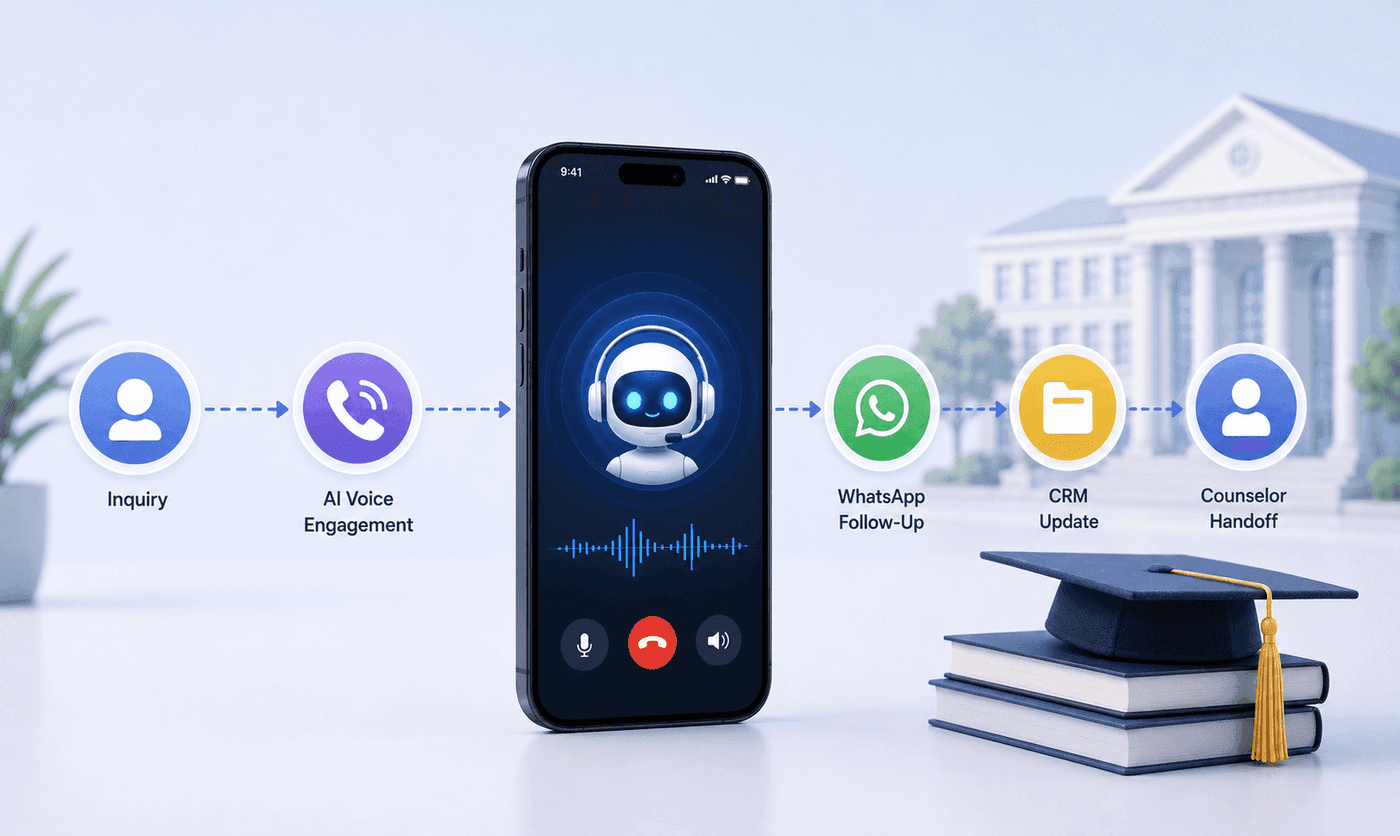
How an Executive Education Institution Automated Its Entire Admissions Workflow Using AI Voice and WhatsApp
How an executive education institution automated admissions from first call to counselor handoff with AI voice, WhatsApp, and CRM syncing.

How an EdTech Founder Reactivated a Dormant Lead Database Using WhatsApp Automation and AI-Assisted Qualification
How an EdTech founder reactivated a dormant inquiry database and acquired customers in week one using WhatsApp outreach and AI qualification.