Connect Your AI Agent to WhatsApp | Kipps.AI
Learn how to integrate your AI chatbot or voice agent with WhatsApp using Kipps.AI. Automate conversations, support tickets, and lead capture at scale.

Share This Article
Table of Contents
How to Integrate Your AI Agent with WhatsApp
Introduction
WhatsApp is the most widely used messaging platform on earth, with over 2 billion users worldwide and — in markets like India, Brazil, and much of the Middle East — open rates that dwarf email and SMS. For most consumers, WhatsApp isn't an app they check occasionally; it's the default place they expect to hear from businesses they deal with.
Integrating your Kipps.AI agent with WhatsApp Business lets your business meet customers there directly: answering questions, qualifying leads, sharing order updates, and resolving support issues inside the same chat thread a customer already uses to talk to friends and family. This guide walks through connecting a Kipps.AI chatbot to your WhatsApp Business account, and covers the practical policy constraints — opt-in, templates, and session windows — that shape how any WhatsApp automation has to work.
This is for teams that already have (or are willing to set up) a WhatsApp Business Account and want their Kipps.AI agent to handle conversations on that channel, rather than teams looking for a generic chatbot embed.
Before You Start: Prerequisites
WhatsApp integration involves both Kipps.AI and Meta's WhatsApp Business platform, so gather these before you begin:
- A Kipps.AI account with a chatbot already created and its knowledge base, persona, and conversation flows configured and tested.
- A WhatsApp Business Account (WABA) registered with Meta, along with a dedicated business phone number that isn't already active on the regular WhatsApp or WhatsApp Business consumer app (a number can't run both simultaneously).
- Access to your WhatsApp Business Account ID, Phone Number ID, access token, and webhook credentials — the identifiers Kipps.AI needs to send and receive messages on your behalf. If you don't manage the WABA yourself, loop in whoever does before you start, since you'll need these values mid-setup.
- A plan for your message templates. Any message you send outside an active customer conversation — a proactive update, a reminder, a marketing message — has to use a pre-approved template. Draft the templates you'll need and account for Meta's review time.
- Familiarity with WhatsApp's messaging policies, covered below, since they directly affect how your agent can and can't initiate conversations.
A Quick Note on WhatsApp Business Policy
Before wiring anything up, it's worth understanding the rules that govern messaging on WhatsApp — no platform, including Kipps.AI, can route around them. Opt-in is required: you need a customer's permission before messaging them, typically because they messaged you first or explicitly agreed to be contacted. A 24-hour session window governs free-form replies — once a customer messages your business, you can reply with anything for 24 hours; outside that window, only a pre-approved template works. Template messages require Meta's approval, and templates that read as spammy or don't match their stated category are typically rejected. These specifics shift over time, so check Meta's current WhatsApp Business Platform documentation before launching at scale, and design your agent's conversation flow with these constraints in mind from day one.
How to Get Started
Step 1: Log in or sign up
Log in to your Kipps.AI account, or create one if this is your first agent.
Step 2: Create your chatbot
Create a chatbot and configure its persona, knowledge base, and any conversation flows it needs before connecting it to WhatsApp. It's much easier to catch gaps in how the agent responds while testing it in Kipps.AI's own interface than after it's live in front of real customers.

Step 3: Open the Integration section
From your chatbot's dashboard, click on the Integration section, where all of Kipps.AI's channel connections — WhatsApp, CRM tools, and others — live.

Step 4: Select WhatsApp Business
Choose WhatsApp Business from the list of integrations and click through to begin setup.

Step 5: Connect
Click the Connect button to start linking your WhatsApp Business Account to your Kipps.AI agent.

Step 6: Enter your WhatsApp Business credentials
Fill in the required fields with the credentials from your WhatsApp Business setup:
- WhatsApp Business Account ID
- Phone Number ID
- WhatsApp Access Token
- WhatsApp Webhook Token
- WhatsApp Phone Number

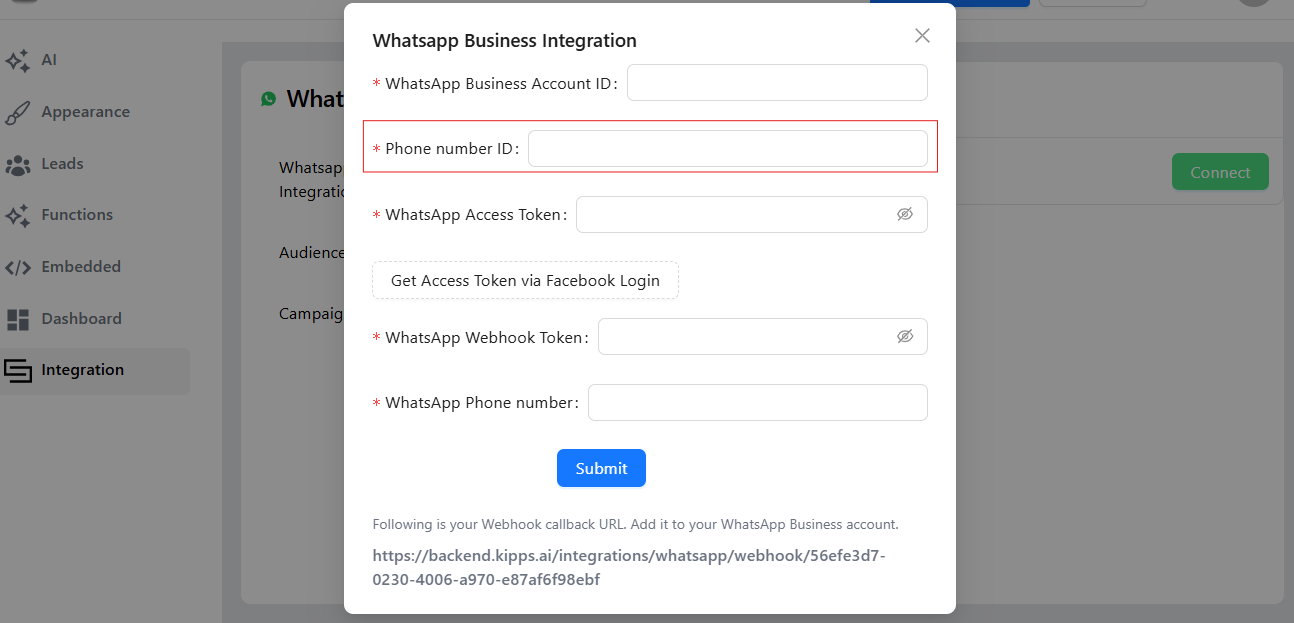


Double-check each value as you enter it — these identifiers are easy to mistype, and a single wrong character in the access token or webhook token will cause the connection to fail silently rather than with an obvious error.
Step 7: Copy the webhook link
Copy the link Kipps.AI generates for you. This is what allows WhatsApp to send incoming messages back to your Kipps.AI agent, so it needs to be registered correctly on the Meta side of your setup.

Step 8: Submit and activate
Click Submit to activate your WhatsApp agent. Once activated, send a test message to your WhatsApp Business number from a personal phone to confirm the agent responds correctly before directing real customer traffic to it.

Troubleshooting
My WhatsApp number connected but the agent isn't responding to messages. Confirm the webhook link was registered correctly and that the webhook token entered in Kipps.AI matches what's configured on the WhatsApp Business side — a mismatch is the most common cause of messages arriving but never reaching your agent.
The connection fails immediately after I submit my credentials. Recheck each field for typos, especially the access token and Phone Number ID — long strings that are easy to copy incorrectly, particularly if the source added trailing spaces or line breaks.
My agent can't send a message to a customer. If the customer hasn't messaged you in the last 24 hours, your agent can only reach them using an approved template — a free-form reply outside that window will fail.
My template was rejected by Meta. Rejections are usually about content, not technical setup — overly promotional language, mismatched categories, or unclear opt-in context are common reasons. Revise the wording and resubmit.
Messages are being delivered late or not at all. Check WhatsApp Business Platform's own status and any rate limits tied to your account tier — delivery issues are sometimes on the Meta side rather than the Kipps.AI connection.
Best Practices
- Design your opening flow around consent. Make clear what users are opting into when they first message your WhatsApp number, especially if you plan to follow up later with reminders or offers.
- Keep the 24-hour window in mind when designing conversation flows. If a query might take longer than a day to resolve, plan for a template-based follow-up.
- Get your core templates approved before launch, not after — review isn't instant, so submit with enough lead time.
- Test with a real device, not just a browser preview, since WhatsApp's rendering of buttons, media, and quick replies can differ subtly.
- Monitor your message quality rating. WhatsApp Business accounts are scored partly on how recipients respond (blocks, reports, opt-outs) — an agent that over-messages can affect account standing over time.
Use Cases
- Automate customer support and FAQs
- Qualify leads with conversational chatflows
- Send order updates, reminders, and alerts
Frequently Asked Questions
Yes. Kipps.AI connects to an existing WhatsApp Business Account and phone number — it doesn't create or register one for you.
Only using an approved message template, and only if you have a valid basis for messaging them. Free-form messages are limited to the 24-hour window after a customer's last message.
Review timelines are set by Meta and can vary, so submit templates well ahead of when you need them.
WhatsApp Business numbers are dedicated to WhatsApp messaging and can't run the regular consumer app simultaneously. A voice agent on a separate line is typically configured as its own number.
Check whether your access token has expired or been revoked on the Meta side, then reconnect the integration in Kipps.AI with a fresh token.
With Kipps.AI, integrating your AI agent with WhatsApp is quick, scalable, and reliable. Whether it's lead generation, customer support, or order updates, Kipps.AI puts your agent where customers already are — without requiring them to download a new app or visit a separate page.
Ready to put your agent on WhatsApp? Talk to our team or explore the platform at kipps.ai.
Read Next
Related Case Studies
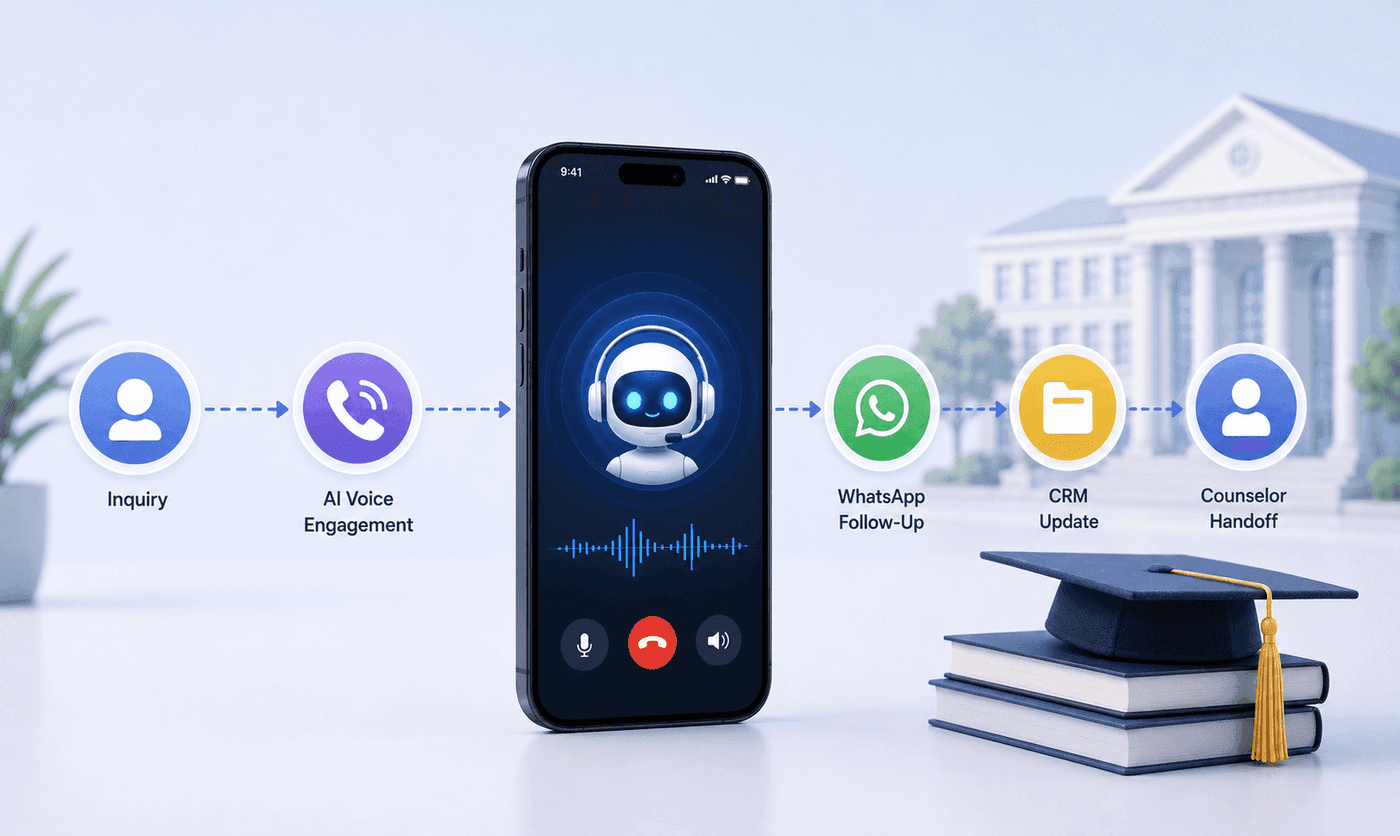
How an Executive Education Institution Automated Its Entire Admissions Workflow Using AI Voice and WhatsApp
How an executive education institution automated admissions from first call to counselor handoff with AI voice, WhatsApp, and CRM syncing.

How an EdTech Founder Reactivated a Dormant Lead Database Using WhatsApp Automation and AI-Assisted Qualification
How an EdTech founder reactivated a dormant inquiry database and acquired customers in week one using WhatsApp outreach and AI qualification.